The search function in Dawiso enables users to quickly find the information they need to support their work. There are multiple types of searches available, each having its own search area that allows you to search (and filter) objects.
Download the full example package here: Recipe Manager (Custom Search Area).json
The example package also has tokenization configured. For more information, see Tokenization Configuration.
Every search area has its index and queries. A search index collects data and stores it for quick retrieval when we look for something. A search query specifies what information to retrieve from the search index.
| Search Type | Location | Search Area |
|---|---|---|
| Mini Search | Appears when you create hyperlinks to objects or embed attributes. Facets are hidden by default. This search area uses its own ElasticSearch index for object searches. The search results typically include different types of data compared to the regular object search and usually do not contain information such as attributes or descriptions. 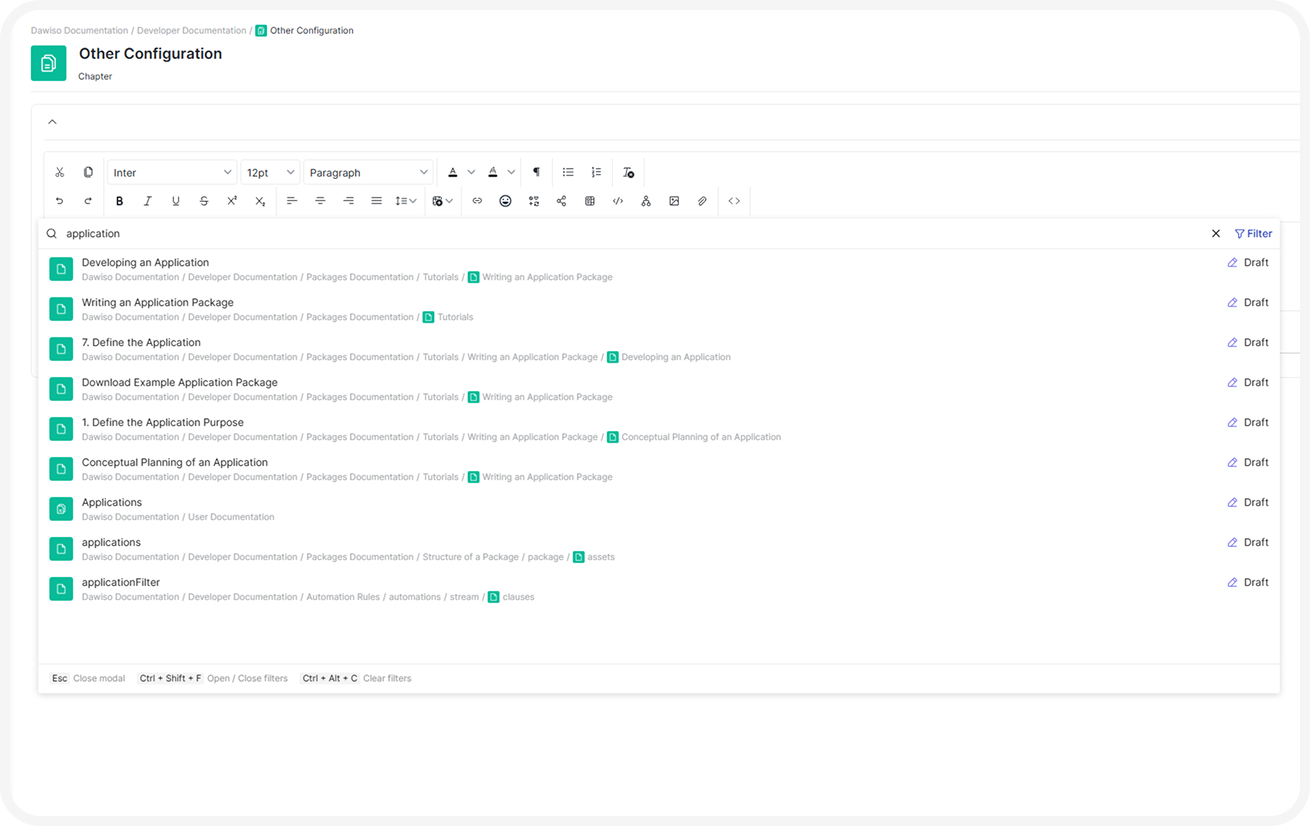 | Object search area. |
| Appears when you add object relations. Facets are hidden by default. Similar to object search. | Relation type search area. | |
| Search | Appears when you start typing in the search bar. Facets are on the right. 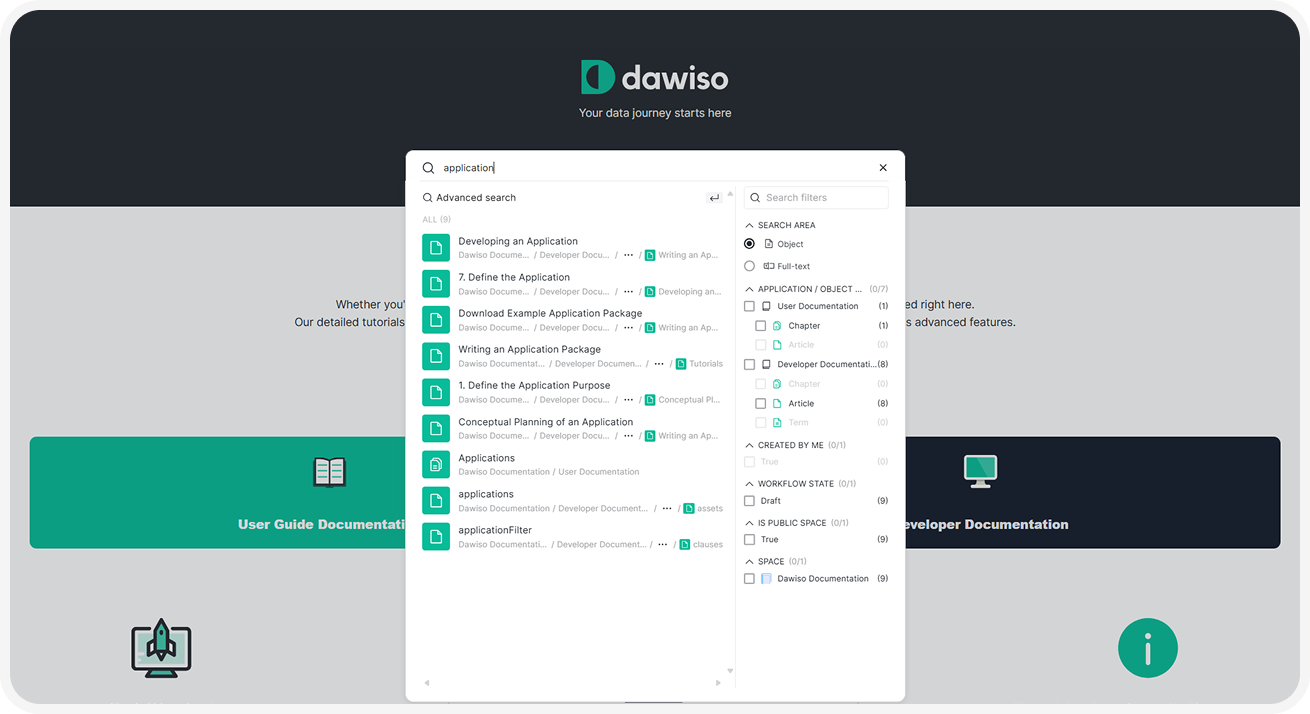 | Search and Advanced Search share the same search areas, which are search area, Full-text search area, Any other custom search areas |
| Advanced Search | Appears when you switch from basic Search to full-screen Advanced search (either click Advanced search or type some text and hit Enter). Facets are on the left. 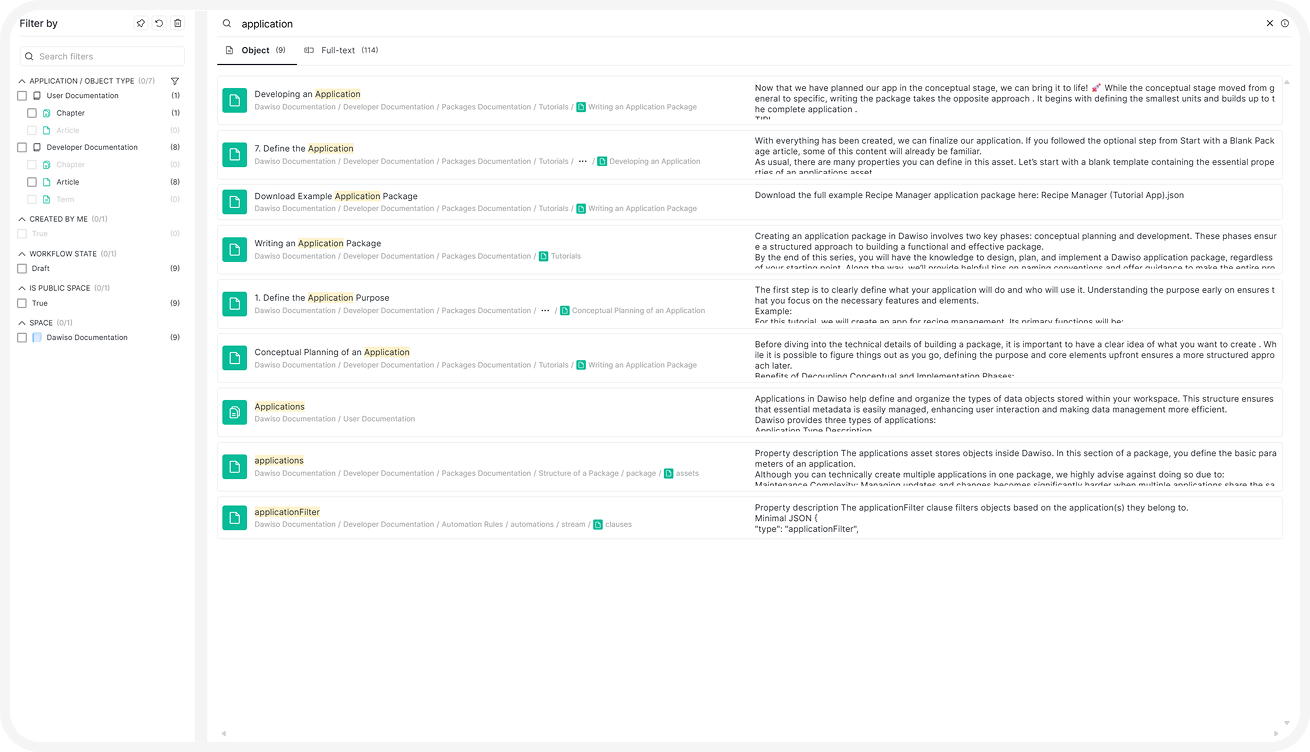 |
One search index can be assigned to multiple search areas.
Create a Search Area
Dawiso allows you to customize Search and Advanced Search using custom search areas with their own facets, which can filter objects based on:
- Space
- Application
- Object Type/Domain
- Attribute
- Target of Object Relation
- User in User Relations
To create a new search area, add the following assets to your application package (for more information see Writing an Application Package).
"searchQueries": [],
"searchIndexes": [],
"searchForms": [],| Property | Purpose |
|---|---|
searchQueries | Define search queries using ElasticSearch QueryDSL for the new search area. |
searchIndexes | Create a search index. While it’s also possible to configure its settings, we highly recommend using the default ones. Using the search property under objectTypes, assign object types to the index to set that this is the type of data the index will store. |
searchForms | Configure default facets in the search area that are used to filter your search results. You can also configure custom facets for each object type, which is done on the objectTypes level. |
Search Queries
First, define the queries for the search area. Usually, there are three queries that need to be used.
| Query Type | Purpose |
|---|---|
| Empty | For empty text searches or when retrieving all results using an asterisk *. |
| Basic | For text searches in Search or without the use of operators. |
| Advanced | For text searches in Advanced Search or using operators (e.g. AND, OR). |
For the empty and basic query, we recommend using predefined queries from Dawiso, for an advanced query, feel free to define your own. |
We highly recommend using Dawiso’s predefined search queries instead of defining your own. Instead of custom queries, search form will then use the following query keys:
- #_all_object_search_empty
- #_all_object_search_basic
- #_all_object_search_advanced
Although we recommend using preset queries, let’s take a look at an empty query template:
"searchQueries": [
    {
        "key": "",
        "description": "",
        "searchQueryTypeKey": "",
        "searchQuery": ""
    }
],| Property | Purpose |
|---|---|
key | Unique key of the search query. This is used to assign the queries to search forms. |
description | Description of the query’s purpose for internal purposes. |
searchQueryTypeKey | Type of the query. Supported values are, basic, advanced You will need to define a query for each of these types. We recommend using our predefined queries. You can refer to the provided example package. It’s possible to define your own query using the ElasticSearch documentation. |
searchQuery | Definition of the search query in ElasticSearch QueryDSL. You can see how these queries look like in the example package. |
Search Index
Search indexes are indexes in ElasticSearch, which collect and store data to ensure the information retrieval is quick and accurate.
First, create a new search index. Then using the search property on the objectTypes level, define what kind of data the index will store by assigning an object type to the index.
"searchIndexes": [
    {
        "key": "",
        "indexName": ""
    }
],| Property | Purpose |
|---|---|
key | Unique key of the index (must be all lowercase). The key is used to object types to it to make them searchable., Link the index to a search form. |
indexName | Name of the index (must be all lowercase). |
searchIndexSettingsKey | [Optional] Key of the index settings. While it’s possible to configure them in the searchIndexSettings asset, we strongly discourage modifying these as they are intended only for multi-language support use cases. |
Recipe Manager: Selected Object Types for Search
For our example Recipe Manager, only the Recipe and Ingredient object types will be included as results of this search area.
Click here to hide the example.In the search property of an object type, we will:
- Enable the isSearchable property.
- Assign it to the newly created index.
”objectTypes”: [
…
{
“key”: “recipe”,
“name”: “Recipe”,
…
“search”: [
{
“isSearchable”: true,
“indexKey”: “recipe_tutorial_index”
}
],
…
},
{
“key”: “ingredient”,
“name”: “Ingredient”,
…
“search”: [
{
“isSearchable”: true,
“indexKey”: “recipe_tutorial_index”
}
],
…
}
],
…
“searchIndexes”: [
{
“key”: “recipe_tutorial_index”,
“indexName”: “recipe_tutorial_index”
}
],
Once you’re done with creating the index and configuring what data it should store, refresh index in Dawiso settings. Keep in mind that with a large number of indexes, the refresh might take a longer time during which search will not return any results.
Search Forms
Finally, let’s define the search area itself and how it looks in the UI using the searchForm asset. In the example screenshot below, you can see what UI elements we can configure.
"searchForms": [
    {
        "key": "",
        "iconKey": "",
        "searchIndexKey": "",
        "searchQueryKeys": [
            "#_all_object_search_empty",
            "#_all_object_search_basic",
            "#_all_object_search_advanced"
        ],
        "replaceSynonyms": true,
        "orderNumber": 3,
        "template": {
            "formId": "",
            "title": "",
            "defaultFacets": [ ]
        }
    }
],| Property | Purpose |
|---|---|
key | Unique key of the search form. |
iconKey | Key of the icon used to visually represent the asset. Use predefined icons from Settings > Configuration > Icons, or define custom ones in the icons asset. |
searchIndexKey | Key of the index this search area uses for its search result. |
searchQueryKeys | Keys of search queries which will be used in this search form. If you used the predefined queries, the property should contain the following query keys:#_all_object_search_empty, #_all_object_search_basic, #_all_object_search_advanced |
replaceSynonyms | Determines whether looking up synonyms or acronyms returns the original term. To enable synonyms replacement, ensure your package has the following relation types with these features (feature is_relation_type_synonym_of), has_acronym (feature is_relation_type_acronym_of) |
orderNumber | Order of the search area in Search and Advanced Search. |
template | Template of the search area includes links the form and the template, title is the name of the area which will show up in Search and Advanced Search. Make sure to add its translation., defaultFacets are the most important feature here are search facets which allow filtering of the search results. |
Default Facets
The defaultFacets property defines the search area’s facets to filter search results. You can define multiple facet levels.
"defaultFacets": [
    {
        "type": "faceted-element",
        "title": "",
        "defaultCollapsed": false,
        "enumKeyType": "",
        "enumKey": "",
        "elementType": "",
        "orderBucketsType": "",
        "parameters": [ ],
        "primaryResultText": true,
        "valueType": "",
        "values": [ "" ],
        "subFacets": [ ]
    }
]| Property | Purpose |
|---|---|
type | faceted-element |
title | Title of the facet shown in the left-side of the Advanced Search. |
defaultCollapsed | [Optional] Determines whether the list of facets is expanded by default. |
enumKeyType | Type of the asset that the facet filters. Supported values are:addRelation: Filter objects based on the relation the user wants to add., application: Filter objects based on the applications they belong to., attribute: Filter objects based on their attributes., creator: Filter objects based on the user who created them., domainTypes: Filter objects based on their domain types., objectType: Filter objects based on their object types., relation: Filter objects based on their relation types., space: Filter objects based on what spaces they belong to., userRelation: Filter objects based on their user relations., workflowState: Filter objects based on the workflow states they are in.Each facet type allows the configuration of different facets. For more information, see the table below. |
enumKey | Key of the filtered asset. Supported values depend on the enumKeyType. For more information, see the table below. |
elementType | Type of the filter in the UI. E.g., a list of checkboxes, or values to select. Supported values are:valueList: List of checkboxes., hidden: Facet is hidden from the UI.Other possibilities (used specifically for Data Market):selectBox: Drop-down list of checkboxes., listedValues: Values as selectable tabs. |
orderBucketsType | [Optional] Order of the search facets (filters) based on a defined order attribute. Supported values are:attributeType:packageKey_attributeTypeKey: Orders facets based on the value of the attribute., count: Orders facets based on the number of eligible results., value: Default. Orders facets according to their values.The following values are available only when specific combinations of enumKeyTypes and enumKeys are selected Key Type — Enum Key — Order Buckets Type; application — nameKey — orderAttribute: Organizes facets based on their application orderNumber property.; domainTypes — nameKey — orderAttribute: Organizes facets based on their domain type orderNumber property.; objectType — nameKey — orderFeatureValue: Organizes facets based on the object type facet_sort_order feature and the object type name.; objectType — nameKey — orderFeatureCount: Organizes facets based on the object type facet_sort_order feature and the number of eligible results.; space — name.keyword — orderAttribute: Organizes facets based on their space sortOrder property. |
parameters | Internal values used to order or identify the facet entries.enumKey: Same as enumKey property., enumKeyType: Same as enumKeyType property., valueType: Same as valueType property |
primaryResultText | [Optional] Determines if the attribute is used as description of search results. Used mainly for full-text search or facets using text attributes. |
valueType | Determines what data type the search result will be. Supported values are, isText, isTranslationKey, None |
values | Keys of assets used as facets. Supported format is asset.type.package_key_asset_key.name. |
subFacets | [Optional] Additional facet level for more precise filtering. Subfacets are configured the same way as the parent facet. For example, if we configure a facet allowing you to select individual applications, each of these applications can also list their object types for more precise filtering. Business Glossary, Business Term, Business Indicator, Business RuleDocumentationDocument Set, Document |
Select the Right Facet Types and Facets Combination
There are multiple type of facets and their values that you can select. In the table below, you will find what facets are selectable for which facet type.
Facet Type= enumKeyType | Supported Facets= enumKey |
|---|---|
application | #_nameKey: Facet contains names of applications., #_id: Facet contains IDs of applications. Used as a parameter., #_orderNumber: Used as a parameter to define the order of facet values. |
attribute | Key of any attribute type (in the package_key#attributeTypeKeyformat) with one of the following features, is_search_type_text, is_search_type_bool |
creator | #_id: Facet contains a boolean (true/false) filter used to show only objects created by a logged-in user. |
domainTypes | #_nameKey: Facet contains names of domain types., #_id: Facet contains IDs of domain types. Used as a parameter., #_orderNumber: Used as a parameter to define the order of facet values. |
objectType | #_nameKey: Facet contains names of object types., #_id: Facet contains IDs of object types. Used as a parameter to define the order of facet values. |
space | #_name.keyWord: Facet contains names of spaces., #_isPublic: Facet contains a boolean (true/false) filter to show objects in a public space., #_id: Facet contains IDs of spaces. Used as a parameter, #_sortOrder: Used as a parameter to define the order of facet values. |
userRelation | Key of any user relation type (in the package_key#userRelationTypeKey format) with the is_searchable_attribute feature. Facet will contain names of users. |
workflowState | #_nameKey: Facet contains workflow states., #_id: Facet contains IDs of workflow states. Used as a parameter. |
Example: Recipe Manager Search Area
In our Recipe Manager search area, there will be two levels of filters. First, the application facet. Every application will have object type subfacets. Click here to hide the example.Object types that are displayed as facets must be specified using the search setting by
- Enabling the isSearchable feature. (This means this feature will be excluded on the application level.)
- Assigning the object type to the same search index.Apart from the facets in the Advanced Search, the package also configures full-text search of Recipe Manager objects, ensuring that the descriptions are included in the search results. While this is usually the default behavior, this configuration allows you to include other attribute types to the full-text search results.
"searchForms": [
    {
        "key": "form",
        "iconKey": "core_default_search",
        "searchIndexKey": "recipe_tutorial_index",
        "searchQueryKeys": [
            "#_all_object_search_empty",
            "#_all_object_search_basic",
            "#_all_object_search_advanced"
        ],
        "orderNumber": 1003,
        "template": {
            "formId": "form",
            "title": "title.recipe.tutorial.search",
            "defaultFacets": [
                {
                    "type": "faceted-element",
                    "title": "title.facet.application",
                    "enumKeyType": "application",
                    "enumKey": "#_nameKey",
                    "elementType": "valueList",
                    "orderBucketsType": "orderAttribute",
                    "parameters": [
                        {
                            "enumKeyType": "application",
                            "enumKey": "#_id",
                            "valueType": "isNumber"
                        },
                        {
                            "enumKeyType": "application",
                            "enumKey": "#_orderNumber",
                            "valueType": "isNumber"
                        }
                    ],
                    "valueType": "isTranslationKey",
                    "values": [
                        "application.cust_recipe_tutorial_app.name"
                    ],
                    "subFacets": [
                        {
                            "type": "faceted-element",
                            "title": "title.facet_objectType",
                            "enumKeyType": "objectType",
                            "enumKey": "#_nameKey",
                            "elementType": "valueList",
                            "orderBucketsType": "value",
                            "valueType": "isTranslationKey",
                            "values": [
                                "object.type.cust_recipe_tutorial_recipe.name"

                        }

                },
                //Full-text facets configuration
                {
                    "type": "faceted-element",
                    "title": "",
                    "enumKeyType": "attribute",
                    "enumKey": "core#description",
                    "elementType": "none",
                    "orderBucketsType": "value",
                    "primaryResultText": true,
                    "valueType": "isText"
                },
                {
                    "type": "faceted-element",
                    "title": "",
                    "enumKeyType": "attribute",
                    "enumKey": "recipe_tutorial#recipe_steps",
                    "elementType": "none",
                    "orderBucketsType": "value",
                    "primaryResultText": true,
                    "valueType": "isText"
                }

        }
    }
],
Custom Facets
Dawiso also lets you configure custom facets that are displayed only when a specific object type is selected. Custom facets are configured in the objectTypes asset. In its templates property, you can configure the template of the custom facets.
Click here to hide the example.In our example for the Recipe Manager application, after selecting the Recipe object type, additional facets will show up allowing you to further filter your search results by Recipe Owner user relation.
Apart from setting the object type as searchable, other attributes must have the is_searchable_attribute feature.
"userRelationTypes": [
    {
        "key": "recipe_owner",
        ...
        "features": [
            ...,
            {
                "key": "is_searchable_attribute",
                "value": true
            }

    },
    ...
],
...
"objectTypes": [
    ...
    {
        "key": "recipe",
        "name": "Recipe",
        ...
        "search": [
            {
                "isSearchable": true,
                "indexKey": "recipe_tutorial_index"
            }
        ],
        ...
        "templates": {
            ...
            "search": {
                "value": [
                    {
                        "type": "faceted-element",
                        "title": "title.facet.object.recipe_owner",
                        "iconKey": "core_default_object_type",
                        "enumKeyType": "userRelation",
                        "enumKey": "recipe_owner",
                        "elementType": "valueList",
                        "orderBucketsType": "value",
                        "valueType": "isText"
                    }

            }
        }
    },
    …
]