June, 2025
We are excited to present you with the Long-Term Support (LTS) Release Note 2025.5! This LTS covers all Dawiso updates, enhancements, and bug fixes released since release 2025.1, covering a development period of the past six months.
Our ongoing commitment to improving the platform ensures you have access to the most reliable and feature-rich tools. In this document, you will find a detailed overview of what is new.
Please note that this LTS serves as a full replacement for a standard release note.
Download the 2025.5 LTS as a PDF here.
Automations
During this LTS cycle, we introduced powerful automation capabilities to Dawiso. Admin users can now configure rules that automatically trigger actions based on object changes, specific events, or recurring schedules.
Each automation consists of a trigger, stream, and one or more resulting actions:
- Triggers define when the automation runs (e.g., on object change or at scheduled intervals).
- Streams specify which objects the rule applies to by using a set of conditions to filter or select object types, groups of object types, or related objects (such as their parents, children etc.).
- Actions determine what happens next, such as modifying an attribute, changing a workflow state, or notifying users.
Examples of how this feature is used include:
- Automatically setting a document’s workflow state to Review when its description changes.
- Notifying a Steward when any changes occur in a specific space.
- Sending an email notifying users when they are assigned to an object.
Since its initial release, the automation feature has been significantly expanded to support more advanced scenarios. You can now automate workflow state transitions, attribute updates, targeted notifications, and Tableau writebacks bringing greater control and efficiency to your data governance workflows.
For more information, see the documentation on Automation.

Conceptual Modeling
This LTS marks a major milestone: conceptual modeling is now available in Dawiso, and we’re excited to make this capability available to all users. This powerful new capability allows users to visually design and structure high-level relations within their environment. This helps teams build a shared understanding of key data concepts through clear, customizable diagrams.
Conceptual models consist of flexible shapes and connector lines that are used to represent entities, processes, or other domain-specific elements. They are now included in all standard Business Glossaries and can also be added to any existing application.
Additional resources, including documentation, best practices, and examples, will be made available to support the effective use of conceptual modeling. Beyond the Business Glossary, other standard applications with pre-configured conceptual models are also being prepared to help teams collaborate more effectively and gain clearer insights into their data environment.
Dashboards
The June LTS brings four new dashboards to Dawiso, giving users and administrators expanded visibility into platform usage, asset coverage, and engagement trends:
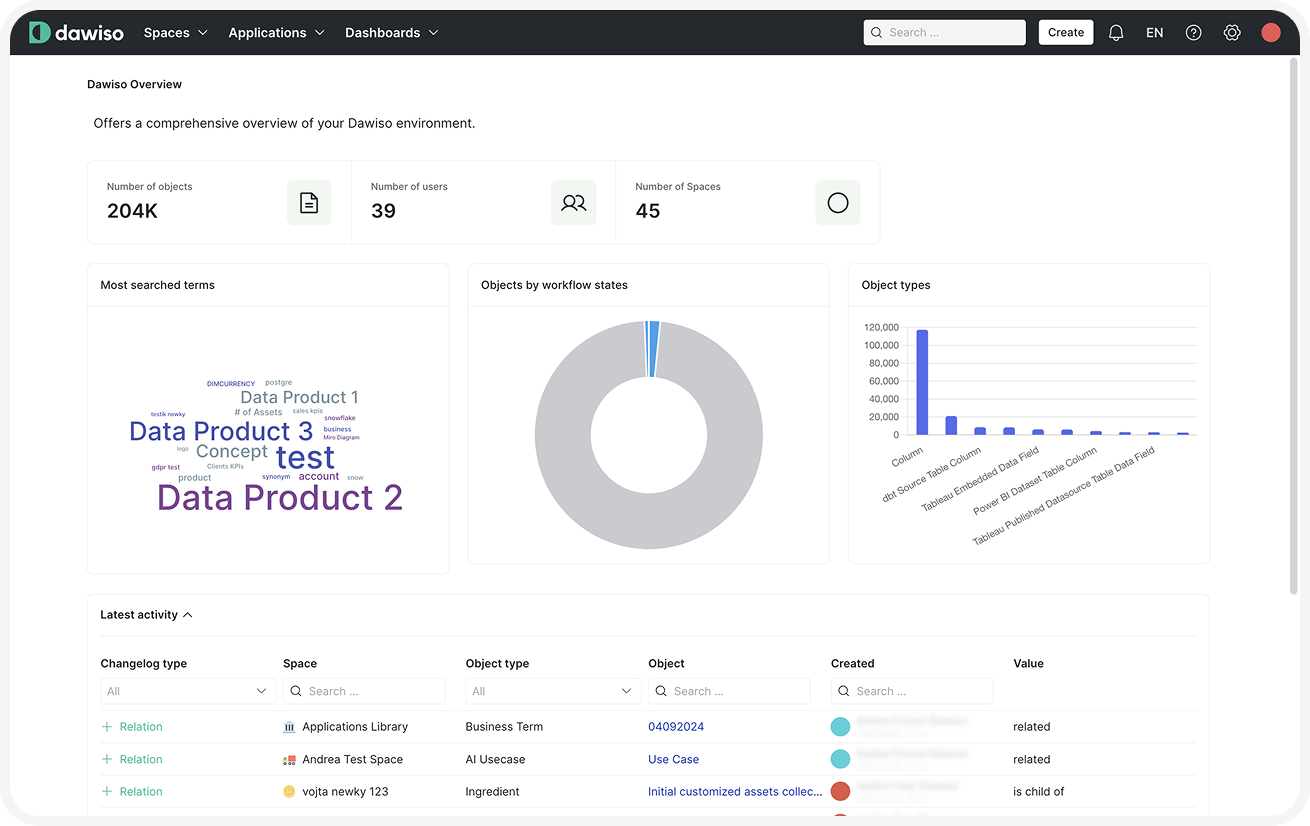
- Dawiso Overview: A comprehensive snapshot of your Dawiso instance, including total objects, users, and spaces. It also tracks the most searched terms, object statuses, object types, and recent activity.
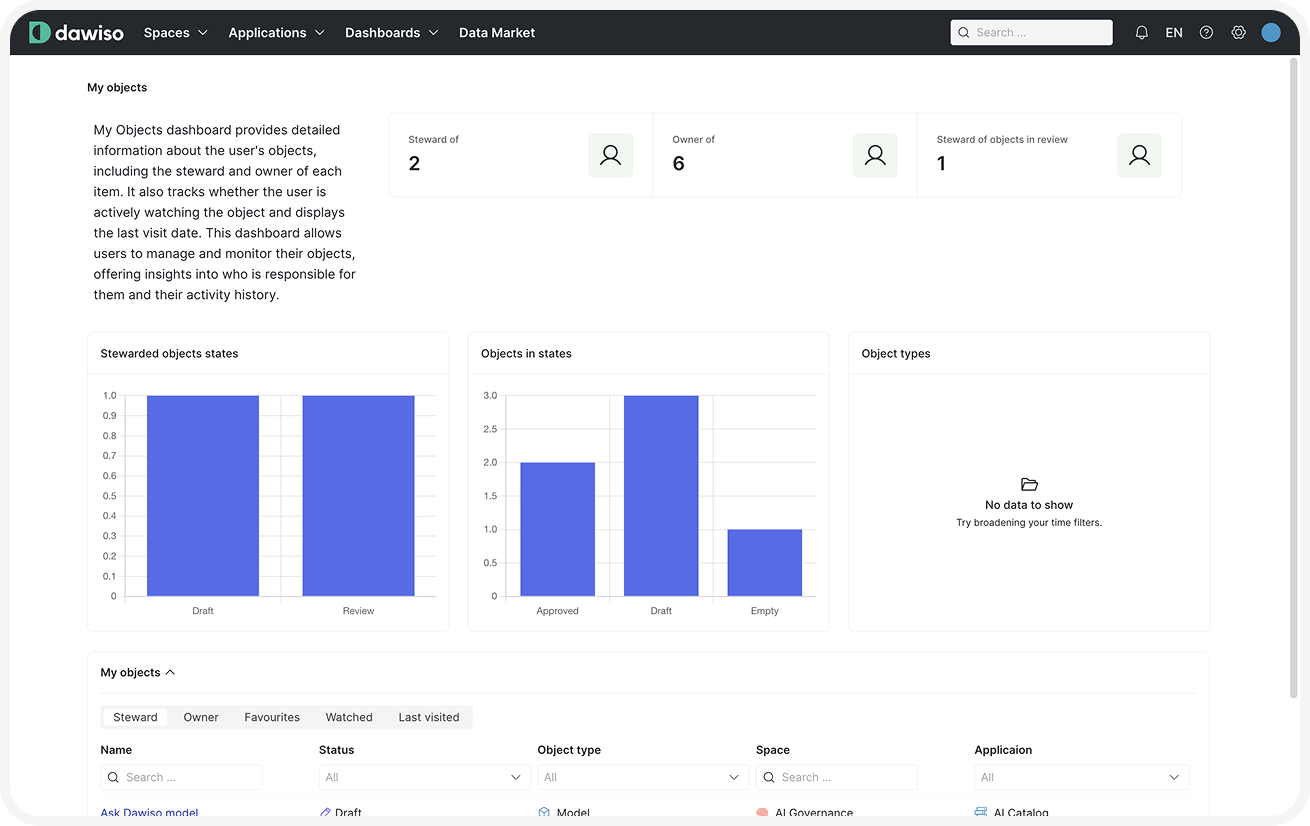
- My Objects: A personalized view of your activity, displaying objects where you are a steward or owner, along with object statuses, types, and a list of your managed objects.
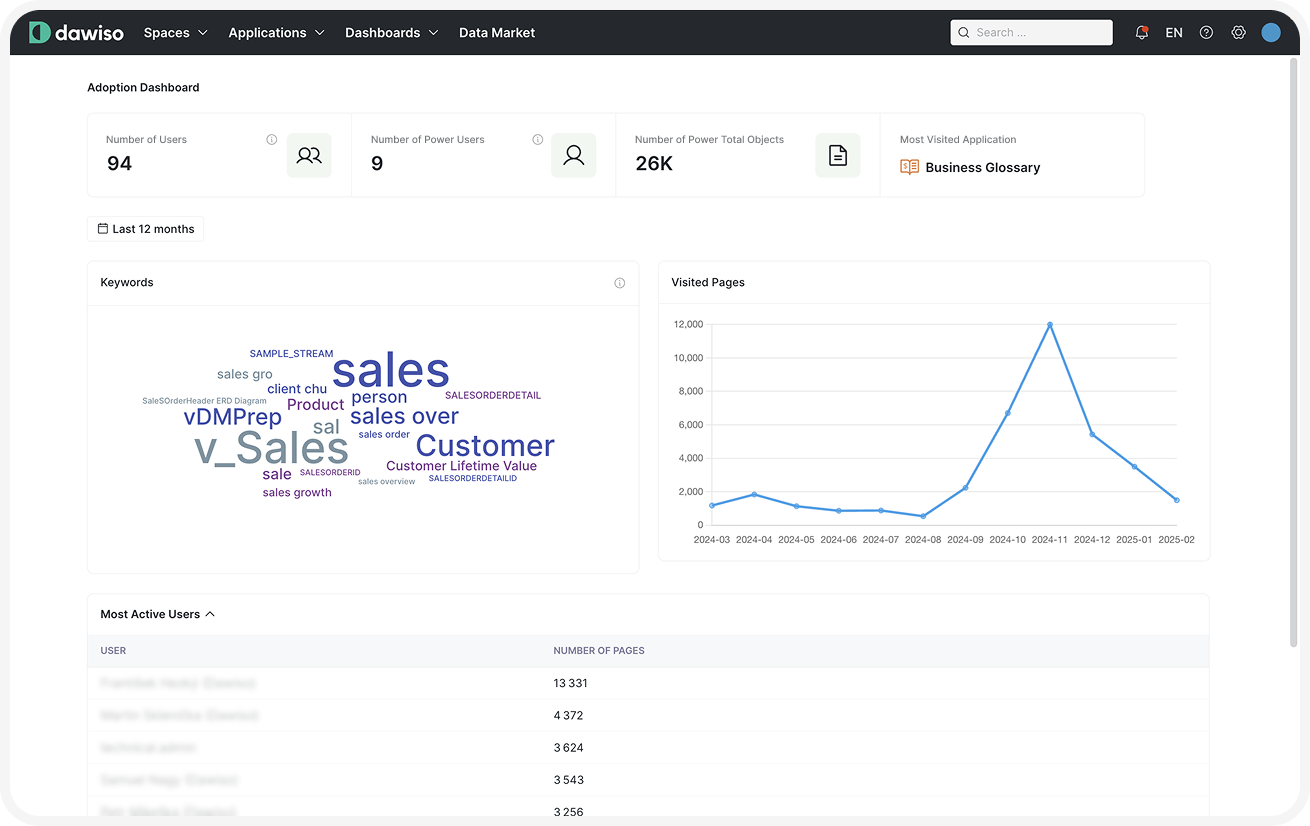
- Adoption Dashboard: User engagement insights, including the number of active users, power users (those who visited at least 100 pages in the last month), and frequently searched terms. It highlights the most visited objects over time and the most active users.
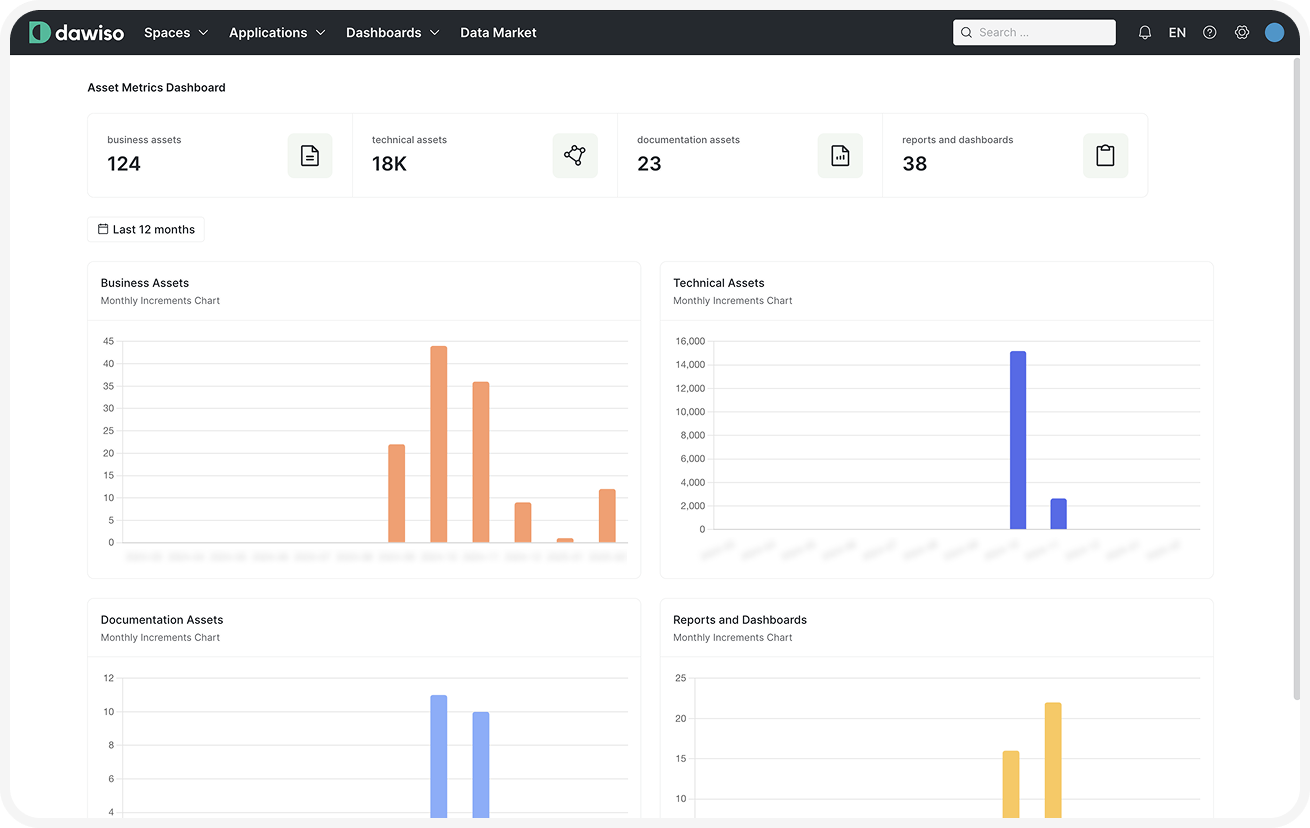
- Assets Metrics Dashboard: A structured view of business and technical assets, including statistics on business assets, technical objects, documentation, reports, and dashboards. It also tracks asset creation trends over time.
These dashboards are included in the standard product and can be deployed to your environment via the Marketplace. For creating or managing custom dashboards, refer to the Pages documentation.
 |  |
|---|---|
 |  |
Data Ingestion
Data Flow Parsing
We added support for SQL script parsing to enhance automated lineage generation. This feature identifies relations between objects by analyzing SQL query, helping you build accurate lineage diagrams without manual effort, saving time and reducing costs.
Parsing is configured during data source setup and is enabled by default for newly connected sources unless specified otherwise. Once set up, you will find a new Data flow parsing section under Data Ingestion, where you can track parsing jobs and view detailed results.
This feature is available for Enterprise clients.
In lineage diagrams, objects linked by parsed scripts are marked with a Script icon. Clicking an icon reveals the underlying SQL. If multiple scripts exist, you can select the one you would like to view.
Query Transformation Functionality
When configuring a data source, you can now specify a query transformation in the new Optional Settings field. This allows for dynamic adjustments to queries based on predefined values.
Restart Ingestion
A new Restart ingestion action is now available on the Data Sources page, giving users clearer control over how and when ingestion processes are executed.
Unlike the existing Retry ingestion option, which simply reattempts the last failed run using the same configuration, Restart ingestion reinitiates the entire process from the beginning. This is especially useful when the initial ingestion was incomplete or misconfigured and a fresh start is needed.
Diagrams
Diagrams Optimization
The previous hard limit on the number of displayed relations has been removed. Dawiso now adapts to your device’s performance and network strength, allowing you to visualize more complex relationships without restrictions.
Additionally, diagrams have been enhanced to automatically include the selected object, its child objects, and all incoming and outgoing flows related to those children for a clearer, more complete view of your data landscape.
Dynamic Value Recalculation
Saved diagrams are no longer static. You can now refresh them when changes occur in the underlying data, such as updated data types or newly discovered relationships. Simply open the object and click Update to sync the diagram with the latest metadata, ensuring your visualizations stay accurate and current.
Entity Relations Diagrams
Foreign Keys
Entity relations are now shown precisely at the column level, making it clear which columns serve as foreign keys.
Improved Actions
Diagram interaction has become more precise and flexible. In addition to the previous double-click to fully expand related objects, you can now use the new Precise expand feature. By pressing ALT + click on the number of incoming or outgoing flows, you can choose exactly which objects to add. This enhancement gives you better control over how much context is revealed in complex diagrams.
To support this update, a helpful tooltip now appears when hovering over relation counts, reminding users of the ALT + click shortcut. We have also redesigned action icons throughout the diagrams to be more descriptive, making navigation and actions clearer at a glance.
Refined Right-Click menu and Diagram Switching
We further improved the right-click menu to enhance usability. The option to switch between different diagram types has been redesigned for clarity. While this functionality has been available in previous versions, it has now been refined to allow seamless view switching directly within the same tab, eliminating the need to close the diagram or navigate away to open it in a different format.
Object Movement via Cursor
Newly, when you hold the mouse wheel to move the canvas, only the canvas itself will shift. Other individual elements like tables, folders, notes, and other objects will remain stationary. This behavior is consistent across all diagram types.
Self-Targeting Levels
Diagram performance and clarity have been significantly enhanced with the introduction of self-targeting object levels. This allows Dawiso to visualize nested relationships within the same object type, for example, folders within folders in a Tableau hierarchy.
This improvement enables more accurate representation of hierarchical structures while maintaining smooth performance, even when dealing with complex nesting scenarios.
Tab Selection Restored and Improved
To improve navigation and usability, we have restored the tab-based selection for diagrams, replacing the previously introduced dropdown menu. This change makes it quicker and more intuitive to switch between diagram types or views, especially when working across multiple layers of metadata.
As part of our commitment to user feedback, we are always open to revisiting design decisions, and in this case, we have gladly rolled back the previous change to better support your workflow.
Diagram Bug Fixes
Several important bug fixes have improved the reliability and accuracy of diagram behavior:
- Window closure issue resolved: Switching between diagram types no longer leaves behind unclosable windows.
- Concept filtering in lineages: Concepts that were incorrectly appearing in lineage diagrams are now properly omitted.
- Parent calculation visibility: A bug that prevented relations between parent objects from displaying (despite their child objects being connected) has been resolved. You can see the corrected behavior in the screenshot under Self-Targeting Levels.
Documentation
We have significantly expanded the Dawiso Help Portal to better support users and administrators across the platform.
- A new Tutorials section has been introduced, starting with detailed guides on how to configure application packages to more advanced configuration. This section will continue to grow with practical, step-by-step instructions for key use cases.
- New developer documentation for configuring Automation Rules is now available, helping technical users implement and maintain automation rules more effectively.
- Additional configuration topics, such as setting up Word Export Templates, have also been added.
We are committed to building a reliable and user-friendly knowledge base that grows with the platform. This expansion reflects our ongoing effort to respond to user feedback, keep documentation current, and continuously improve its clarity, depth, and usefulness. Existing articles are regularly reviewed and enhanced to better support your day-to-day work with Dawiso.
General Settings
Administrative Tasks
The Administrative tasks page now provides more detailed insights into problems detected during template refreshes. In the updated Template refresh problems section, you will find clear information on: the severity of each issue, a description of the problem, the package affected.
This enhancement makes it easier to identify and address configuration issues, helping administrators maintain a healthy and up-to-date environment.
Languages
You can now configure which installed languages can be made available for the platform. In the language selector, you can enable language choices and specify one default language for Dawiso.
Make sure that translations are provided for all enabled languages, especially the one set as the default. The selected default language will also be applied to exports, ensuring consistency across user interfaces and downloaded content. If there is no translation provided for some components or labels, English will be used.
Licenses Overview
To help you manage your Dawiso usage more effectively, we have introduced a new Licenses overview section in your account. This feature provides a clear summary of your active licenses, including the type of plan, activation dates, and duration of each license. Understanding your license status ensures uninterrupted access to features helps with compliance and renewal planning.
You can access this overview by navigating to your profile settings and selecting Licenses in the General category.
Predefined List of Colors
A new set of predefined colors is now available for use in package configuration. These standardized color options help maintain visual consistency across devices and through future updates. You can find and manage them under Settings > Configuration > Colors.
We recommend using the colors from the core package, as they are continuously maintained and updated. Using custom colors may lead to inconsistencies in color tones in future releases.
Impact Analysis
Impact analysis is now automatically recalculated when an object’s numbering changes (e.g. when the object is moved). These numbering changes are also recorded in the changelog for transparency.
This ensures that impact analysis remains accurate, since it evaluates the potential effects of changing or deleting an object. A change in numbering can affect object relations, so recalculating is essential to maintain reliable results.
Object-Level Features and Updates
Adding Child Objects via Tables
When adding a new child object via the + icon in a table, the parent object is now immediately shown. This improvement provides better clarity on the object path and ensures users always know where new objects are being placed.
Cloning Objects
It is now possible to clone objects, enabling users to quickly duplicate existing structures for reuse, prototyping, or modification, without altering the original.
When cloning a hierarchy (i.e., an object with child objects), the cloned objects will retain references to the original linked objects. For example, if object C embeds attributes from object A, then cloned object C (1) will still refer to A, not to the new copy A (1).
Cloning is available under the following conditions:
- The hierarchy is not read-only.
- The user has at least Contributor role with write permissions.
Behavior of cloned objects:
- The cloned object will have the same name and its clone number in brackets (e.g., Abbreviation (1)).
- It will start in the default workflow state defined for its object type.
- If cloning a hierarchy, child objects will also be cloned with:
- The same structure and content.
- Their own default workflow states.
- Their original names (no clone number in brackets).
- Relations and links between objects will be recalculated.
- User-specific relations such as watching, liked/disliked, and shared with me will not be copied to the new object.
Export Object in Hierarchy
In this LTS, we have added a new option to export a selected object directly from the hierarchy. This allows you to download a single object quickly, making it easier to share, review, or reuse it.
Numbering in Search and API Tables
When object numbering is enabled, the assigned number is now included in the object name across references, such as search results, API tables, and other views. This makes it easier to locate and identify objects using their chapter or numbering prefix.
Objects are automatically sorted by numbering in hierarchies and static tables. In dynamic API tables, sorting by object number is applied when the sort is configured using a definedKey column set to objectNameWithNumbering.
When an object is moved within the hierarchy, its number is automatically recalculated to reflect its new position.
Numbering can also be included in exports, depending on the configured export settings.
Redesigned Object Detail View
The Object Detail window has been completely restructured in standard packages for improved clarity and navigation. It now features three dedicated tabs, Details, Objects, and Relations, that provide quick access to essential information while maintaining a clean, intuitive layout. To configure object detail in your custom package, refer to the Object Detail documentation.
Relations Improvements
Improved Object Relation Selection
When adding new object relations, the selection window has been enhanced with filter tabs to help you quickly locate the target object. You can now:
- Filter out objects that do not belong to the current space or current application.
- Narrow down the list by selecting up to three specific object types.
These improvements make it faster and easier to establish relevant object relations.
Multiple Relations Selection
When adding relations, you can now select multiple objects to create relations to. To enable this feature, set the isMultiselect property in the relations component configuration. This allows users to select and manage multiple related objects at once.
Packages Configuration
Component IDs
To support more efficient work with patch packages, component IDs are now being gradually introduced across all core packages. These identifiers improve traceability and consistency when reviewing or applying updates to Dawiso components.
Custom Set of Default Attribute Values
A new attribute type now allows you to define a custom preset list of default values. Unlike codetable labels, which reference other object types as values, this feature enables you to create a fixed set of predefined options, which is ideal for standardizing simple attributes across your data model.
Disable Object Move Based on Workflow State
You can now prevent objects from being moved when they are in a specified workflow state. To disable object movement, configure the following settings:
disable_move_based_on_workflow_stateobject type feature anddisableMoveBasedOnWorkflowStateworkflow state property
Excel Exports
We have expanded customization options for Excel exports to give you greater precision over what gets included and how it is filtered:
Excel Export Exclusion
- You can now exclude specific attributes, relations, or user relations directly from the export, not just from the template. This is managed using the
disable_excel_object_exportsetting, which can be applied globally (at the attribute, relations, or user relations asset level) or for individual object types. - It complements the existing
disable_excel_template_exportsetting, which continues to configure what appears in the export template itself.
Excel Export Filtering
- A new configuration option allows you to filter exports by application and space. By setting
export_use_space_app_object_type_checkon a space asset and specifying the space path, you can ensure exports are limited to relevant areas, improving efficiency and reducing unnecessary data.
Harmonized Attributes
To support consistency across applications, we introduced and compiled a set of harmonized attributes that align naming and behavior across object types. These new attributes improve interoperability and make cross-app analysis more intuitive. For more details, refer to the updated Attribute types documentation.
Additionally, new display levels for metamodels have been added, offering greater control over how metadata structures are visualized and navigated within the platform.
Hide Empty Folders in Hybrid Hierarchy
When configuring a hybrid hierarchy (typically used with metadata apps), you can now use the hideIfEmpty property to automatically hide folders that contain no objects. This helps keep the hierarchy cleaner and easier to navigate. For more information, see Hierarchy Definitions.
Hide User Relation Type from Workflows
A new configuration option allows you to hide specific user groups in workflow approval steps using the isHidden setting on the user relation type. This helps streamline the approval view by excluding groups that do not need to be explicitly shown.
For example, admins typically have full editing rights across the platform, so there is no need to display them again in the list of users who can approve changes.
Tooltip Descriptions
We have extended support for configurable tooltips using the "tooltipKey": "translationKey" property across more components on the object type page.
Previously, this feature was only available for attributes, relations, and user relations. It can now also be applied to columns, panels, section titles, and tabs.
This enhancement allows you to provide more consistent in-context guidance across the entire configuration interface, improving clarity and usability for all users.
Public API
New public API endpoints have been added to support broader data access and integration scenarios. These additions make it easier to connect Dawiso with external tools, automate workflows, and retrieve metadata.
For a complete list of new endpoints and usage details, refer to the updated API documentation.
System Settings
Disable Page Access Requests
You can now prevent users from submitting access requests in Dawiso for pages they are not authorized to view using the fe.page.askForSpaceRightsHtml setting. When this setting is configured, its content will be displayed instead of the restricted page. By default, the setting is empty.
This is managed by the application administrator in the environment configuration (available for Enterprise clients).
This option is especially useful when Dawiso accounts are provisioned via Active Directory and similar, for which the Dawiso built-in access request mechanism is not applicable. Instead, you can direct users to a custom page with instructions on how to request access through your internal system.
Scheduled Deletion of Exported Documents
Administrators can configure environment settings to automatically delete temporary files generated by document exports. This helps keep the environment clean and ensures regular removal of outdated exports. By default, the cleanup runs daily at 3 AM.
To enable this, add the following settings to your env_configuration:
be.file_service.export_delete.settings.olderThanXDays: Specifies the number of days after which files should be deleted.be.file_service.export_delete.settings.fileNameRegexp: Defines the file name pattern for files eligible for deletion using a regular expression.
Default values are:
be.file_service.export_delete.settings.olderThanXDays = 14
be.file_service.export_delete.settings.fileNameRegexp = *
UX/UI Enhancements and Optimizations
API Table Text Alignment
For this LTS, we have refined table rendering to improve readability and consistency across views:
- Text alignment has been adjusted so that when one cell spans multiple rows, adjacent cells now align to the top-left, rather than being vertically centered.
- Cell padding has been corrected to prevent text from overflowing into neighboring cells.
- A minimum row height of 32px has been introduced to ensure clear separation between rows and consistent visual structure.
Attachment Names
Attachment names can now include up to 150 characters, including the folder path. Any characters beyond this limit will be automatically trimmed.
This prevents potential issues with file handling across different operating systems caused by overly long names. It helps prevent excessively long or unreadable file names, ensuring attachments remain concise, clear, and easy to work with.
Create Button in Top Navigation Bar
A new Create button has been introduced in the top navigation bar for faster access to object creation. The feature is context-aware as it automatically pre-fills fields like space, app, and parent object based on your current location in Dawiso. This streamlines the object creation process across the platform.
The Create button was implemented in response to one of the most frequently requested improvements, and reflects our ongoing commitment to incorporating customer feedback, which we highly value.
Improved Search Experience
Tooltips in Advanced Search that previously appeared when hovering over objects have been removed. This streamlines the interface and reduces distractions, resulting in a cleaner and more efficient search experience.
Optimized UI
This LTS introduces several improvements to the overall user interface for better clarity and usability. The updated layout is more compact, allowing users to see more at a glance, especially in object tables, where refined proportions now display more information without overwhelming the screen.
To enhance readability and reduce visual strain, the overall page scale has been adjusted to 80% of the original, resulting in a lighter visual weight and a more balanced, focused workspace. This update includes adjustments to font sizes, spacing variables, and padding, all optimized to provide better clarity without overwhelming the screen.
These interface optimizations were guided by user feedback, which continues to play a key role in shaping the evolution of the platform.
Refined Notifications
To keep the interface clean and distraction-free, the notification badge in the top navigation bar now shows “9+” when the number of notifications exceeds nine. This subtle change helps maintain a tidy UI while still ensuring you are aware of pending updates.
The notifications window has also been redesigned:
- You can now choose to view all notifications or only unread ones, giving you more control over how you stay up to date.
- Additionally, notifications now display either the Dawiso icon or the user’s profile icon. This helps immediately identify the user who triggered an automation or another action, such as who is asking for concept approval.
Underlined Hyperlinks in Advanced Search
Object links in advanced search are now underlined on hover. This visual cue helps users quickly recognize clickable links and access the target object directly, without needing to open the object detail view.
General Bug Fixes
We have addressed several issues to improve the reliability and usability of core features:
- Anchors: Anchors on object pages now remain fixed at the top while scrolling, resolving an issue where they would previously disappear from view.
- Object hierarchy: The default object hierarchy now correctly highlights the currently open object, even when multiple hierarchies are available for selection. Additionally, full object paths are now consistently displayed in the breadcrumbs, providing clearer context and easier navigation.
- Synonyms: A bug that prevented users from selecting the Synonym object type when creating child objects from a panel has been fixed.