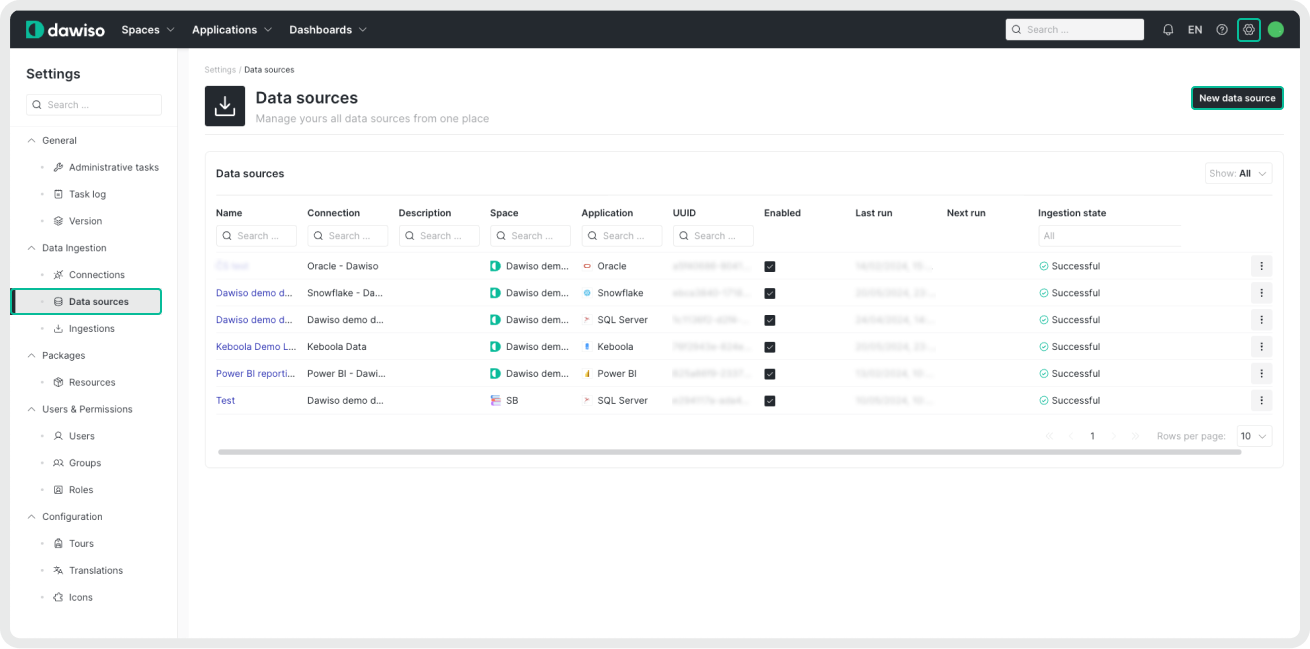
- Navigate to Settings > Data Ingestion > Data Sources.
- Click New data source.
- Select your system and the newly created connection.
- Name your source and add a description for easier identification in Dawiso.
Select projects and datasets
In this step:
- Specify the Region of your Google BigQuery datasets (e.g.,
US,EU,europe-west3). - [Optional] In Projects, list the projects to scan. See Projects.
- [Optional] In Datasets, list the datasets to scan. See Datasets.
A data source scans one region. Datasets in a different location are outside its scope, for both objects and lineage. If your datasets span several locations, create a separate data source per location.
Projects
Leave Projects empty to scan the project set in the connection’s Project ID field.
To scan other projects, or several, list their IDs separated by a comma or a semicolon. Spaces around the separators are ignored. When Projects is filled in, Dawiso scans only the listed projects, so it scans the connection’s project only if you list it. Its queries still run in the connection’s project. For the roles each project needs, see What the service account needs.
Projects also accepts regex: patterns to match many projects at once. See Google BigQuery project and dataset patterns for the syntax, validation rules, and a safety note on full ingestions.
Datasets
Leave Datasets empty to scan every dataset of the region in each project you scan.
To limit the scan, list dataset names separated by a comma or a semicolon, for example AdventureWorks,AdventureWorksDW. Don’t put the names on separate lines: a line break isn’t a separator, so the whole list becomes one name that doesn’t exist.
Datasets also accepts project.dataset qualifiers to reach into a project you haven’t listed in Projects. See Google BigQuery project and dataset patterns.
Edit the lists of projects and datasets
If you edit the list of projects or datasets for an existing and already ingested data source, note the following:
- Newly added projects and datasets are ingested during the next ingestion run.
- Removed projects and datasets are treated as deleted. Dawiso automatically removes all associated metadata during the next run. This includes any user-added content such as descriptions, ownership, or relations.
Lineage settings
Enable Scan lineage to ingest table-to-table and column-to-column lineage between your BigQuery objects, together with the Dataform models that build your tables.
Lineage and Dataform models each need their own role and API access, granted on every project you scan (and, for lineage, on every compute project too). See What the service account needs for the full list and setup steps.
Lineage is scanned in a separate pass after the objects, and on a large estate that pass takes considerably longer than the object scan itself. The objects can finish in a minute while lineage keeps running. An ingestion in that state hasn’t stalled.
If you turned lineage on in Optional Settings (as scanLineage), tick Scan lineage as well: once you save the form, the checkbox takes precedence. Unticking Scan lineage later removes the scanned lineage and Dataform models during the next ingestion.
Dataform models
With Scan lineage on, Dawiso also reads your Dataform repositories and loads qualifying table-building actions as Dataform models, each with its compiled SQL, in the dataset of the table it builds. If a repository has a release configuration, Dawiso reads the released version of the code. See Dataform requirements for which projects it reads and exactly what counts as a model.
Two fields below Scan lineage control where Dawiso looks for repositories:
| Field | What it does |
|---|---|
| Dataform projects | Projects from which Dawiso reads only Dataform repositories, without scanning their datasets. Use it when your repositories sit in a project you don’t scan, for example a separate compute project. Accepts project IDs and regex:/!regex: entries, the same way as Projects; a regex: entry that selects no project fails the ingestion. Dawiso loads only the models that build a table in a dataset this data source scans. |
| Dataform locations | The Dataform locations Dawiso reads in every project. By default, only the data source’s Region. The value - reads every location. Repositories live in a single region, so if your Region is a multi-region such as US or EU, or your repositories sit in another region than your datasets, list their locations here. |
If your data source form doesn’t show these two fields, set them in Optional Settings as dataformProjects and dataformLocations. See BigQuery scan flags.
Destination configuration
In the Destination configuration step:
- Select the space where Dawiso stores your ingested metadata. You can select only the spaces you have access to.
- Select the workflow for managing ingested objects. For more information, see Workflow types.
- Optionally, configure:
- Schedule: To customize the regular automated ingestion, check the box next to Schedule and adjust the frequency.
- Optional Settings: Specify options supported by the provider in JSON format. For more information, see Optional Settings.
- Additional Settings: Add a JSON formatted list of additional settings for troubleshooting your custom scenarios. Leave this field empty unless Dawiso support asks you to change it.
- Enable AI-Generated Descriptions: Generate descriptions for your ingested metadata from predefined prompts. Each attribute type can have its own configurable prompt. AI-generated descriptions carry a banner until a user reviews and saves them.
- Descriptions are generated at the following levels: database, schema, view, and table.
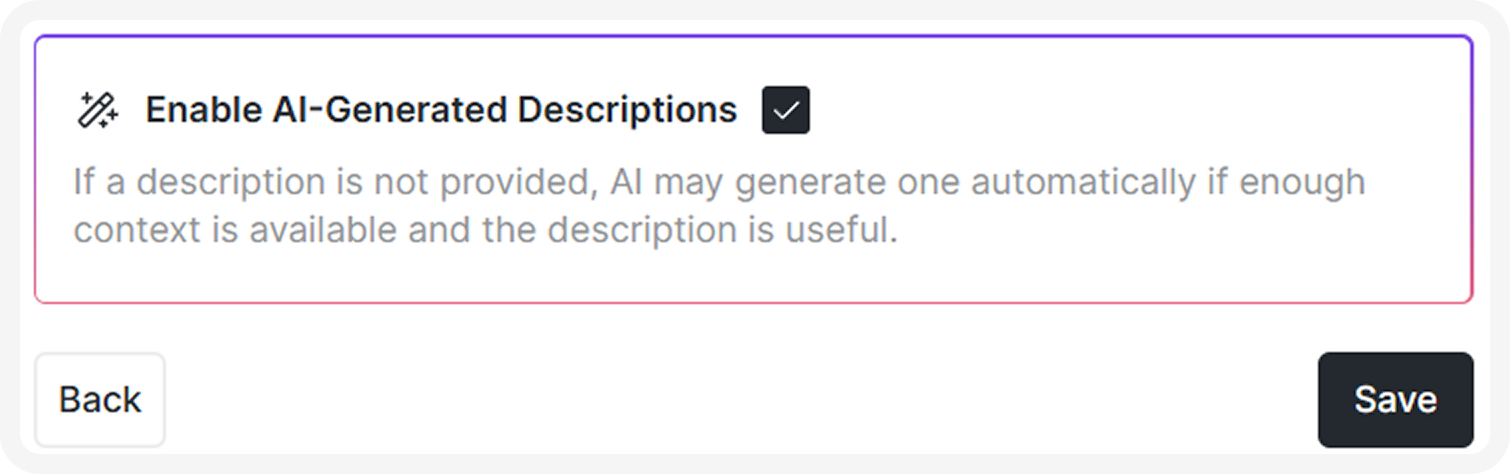
- Descriptions are generated at the following levels: database, schema, view, and table.
- Save your data source.
If you delete a data source and then create a new one for the same space, the original ingested data remains and mixes with the new data. To prevent duplicates, delete the metadata application from the space (with the old source) before creating and ingesting a new one.
BigQuery scan flags
These BigQuery-specific settings have no field of their own in the form. Enter them as JSON in the same Optional Settings field you can also use for query transformations: the two are unrelated, that field is simply where provider-specific options without a dedicated field go. Descriptions, labels, and policy tags are scanned automatically and need no setting here.
| Setting | Default | What it does |
|---|---|---|
scanStorageStats | false | Fills the Partition Count, Row Count, Total Logical Bytes, Total Physical Bytes, and Storage Last Modified attributes of partitioned tables |
scanMaterializedViewsExternal | false | Loads materialized views and external tables, with their columns, as object types of their own. When off, they are loaded as tables, without their columns |
scanBqmlModels | false | Loads the BigQuery ML models of every scanned dataset. Needs the bigquery.models.list permission. See What the service account needs |
Turning on scanMaterializedViewsExternal for an already ingested data source moves the existing materialized views and external tables from tables to their own object types. Dawiso removes the old table objects, including user-added content such as descriptions, ownership, or relations, and creates new objects. Turning the setting off later moves them back, with the same loss.
For example:
{
    "scanStorageStats": true,
    "scanBqmlModels": true
}- Setting names aren’t case-sensitive.
- Write
trueandfalsewithout quotes. - A list can be a JSON list, as in the example, or a single string with the entries separated by commas or semicolons.
- Turning
scanBqmlModelsoff later removes the loaded ML models during the next ingestion.
If your Dawiso version doesn’t yet show Projects, Datasets, Scan lineage, Dataform projects, or Dataform locations as form fields, set them here instead as JSON, for example "dataformProjects": ["analytics-compute", "regex:sales-.*-compute"] and "dataformLocations": ["europe-west3", "us-central1"]. Once a field does appear, it wins over the same key here, even if you clear it, so move the value into the field and delete the JSON key.
Optional settings
In the data source configuration step, the Optional Settings field accepts a query transformation that adjusts queries dynamically based on predefined values.
Query transformations can access the following data source fields:
-
optionalSettings.dictionary: Define key-value pairs to reference in transformations."dictionary":{ "schemas": "dbo, system, api", "databases": "Alpha, Bravo" } -
datasource: Reference values directly from data source properties; these vary by provider.datasource.databases -
optionalSettings: Reference values from optional settings in the data source configuration.{ "databases": "Alpha, Bravo" }
Run ingestion
After you create your data source, Dawiso redirects you to the list of your data sources.
- Click the three dots next to your newly created source, and select Run ingestion.
- Confirm to ingest your data.
You can find all new, running, or completed ingestions by navigating to Settings > Data Ingestion > Ingestions.
For more information, see Ingestions.
If you ingest data on-premises, see Dawiso Integration Runtime (DIR) instead.
Once data is ingested into a metadata application, manual changes to the object hierarchy aren’t allowed. Adding, deleting, or moving objects under different parents can cause data inconsistencies and break data scans.