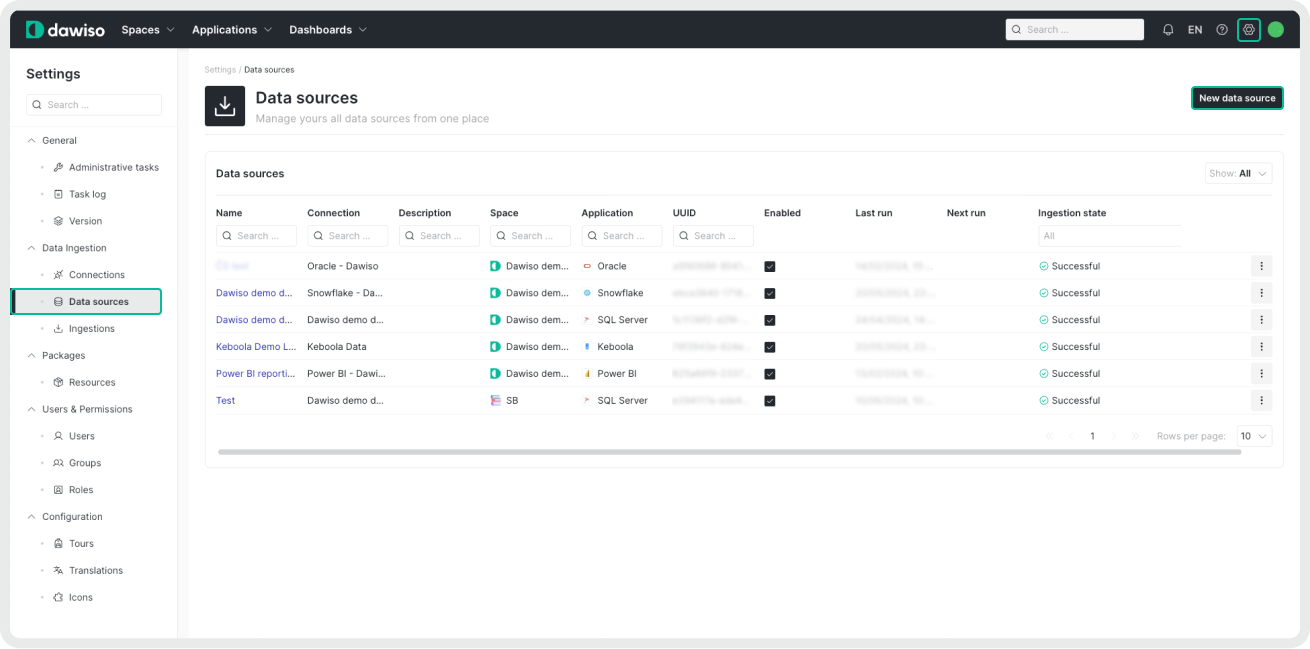
- Navigate to Settings > Data Ingestion > Data Sources.
- Click New data source.
- Select your system and the newly created connection.
- Name your source and add a description for easier identification in Dawiso.
Select schemas
In this step, specify which Oracle schemas you want to ingest into Dawiso. Provide the following information:
- Databases: Enter the SID or service name that you used when creating the connection. This identifies the Oracle database.
- Schemas: With a cloud connection, Dawiso lists the schemas of that database. Tick the schemas to ingest. Use the filter to find a schema and Select all to tick every schema that matches. Schemas scanned: N of M shows how many are ticked. Schemas that Oracle maintains itself, such as
SYSandSYSTEM, are not listed. If the list can’t load, select Retry.
With a self-hosted connection, or after you select Edit as text, enter the schemas as a comma-separated list. Follow these guidelines:
- Don’t include spaces or invalid characters.
- Use commas without spaces to separate schema names (for example,
HR,SALES). - Make sure all listed schemas exist and are accessible. If any schema is missing or inaccessible, the entire ingestion fails.
A saved schema name that is not in the list stays under Other rules kept as saved. Select Remove to drop it.
Editing the list of schemas
If you edit the list of schemas for an existing, already ingested data source:
- A newly added schema is ingested at the next ingestion run.
- A removed schema is treated as deleted: Dawiso removes all its metadata at the next run, including user-added content such as descriptions, ownership, and relations.
Destination configuration
In the Destination configuration step:
- Select the space where Dawiso stores your ingested metadata. You can select only the spaces you have access to.
- Select the workflow for managing ingested objects. For more information, see Workflow types.
- Optionally, configure:
- Schedule: To customize the regular automated ingestion, check the box next to Schedule and adjust the frequency.
- Optional Settings: Specify options supported by the provider in JSON format. For more information, see Optional Settings.
- Additional Settings: Add a JSON formatted list of additional settings for troubleshooting your custom scenarios. Leave this field empty unless Dawiso support asks you to change it.
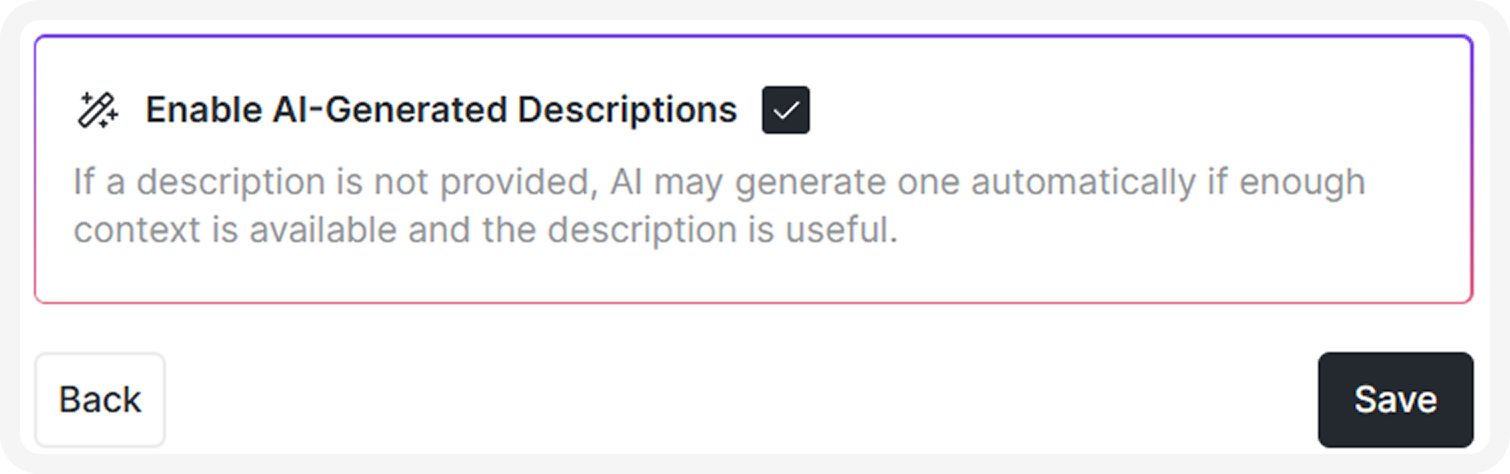
- Enable AI-Generated Descriptions: Generate descriptions for your ingested metadata from predefined prompts. Each attribute type can have its own configurable prompt. AI-generated descriptions carry a banner until a user reviews and saves them.
- Descriptions are generated at the following levels: database, schema, view, and table.
- Descriptions are generated at the following levels: database, schema, view, and table.
- Save your data source.
If you delete a data source and then create a new one for the same space, the original ingested data remains and mixes with the new data. To prevent duplicates, delete the metadata application from the space (with the old source) before creating and ingesting a new one.
Optional settings
In the data source configuration step, the Optional Settings field accepts a query transformation that adjusts queries dynamically based on predefined values.
Query transformations can access the following data source fields:
-
optionalSettings.dictionary: Define key-value pairs to reference in transformations."dictionary":{ "schemas": "dbo, system, api", "databases": "Alpha, Bravo" } -
datasource: Reference values directly from data source properties; these vary by provider.datasource.databases -
optionalSettings: Reference values from optional settings in the data source configuration.{ "databases": "Alpha, Bravo" }
Enable flow parsing
This provider supports Data Flow parsing, an enterprise feature that improves automated data lineage generation. Enable it to analyze the ingested SQL queries and extract relations between objects. For more information, see Sources of data lineage.
Once the data source is set up and ingestion has finished, you can check the parsing job’s status in the Data flow parsing section.
Run ingestion
After you create your data source, Dawiso redirects you to the list of your data sources.
- Click the three dots next to your newly created source, and select Run ingestion.
- Confirm to ingest your data.
You can find all new, running, or completed ingestions by navigating to Settings > Data Ingestion > Ingestions.
For more information, see Ingestions.
If you ingest data on-premises, see Dawiso Integration Runtime (DIR) instead.
Once data is ingested into a metadata application, manual changes to the object hierarchy aren’t allowed. Adding, deleting, or moving objects under different parents can cause data inconsistencies and break data scans.