Objects represent all your business assets and information.
Objects come in various types, which are defined by applications. By selecting the appropriate object type during creation, you ensure data consistency and relevance.
Object types specify:
- Attribute types (attributes range from common details like description or definition to ownership-related aspects)
- Object relations
- Workflow configurations
Examples of object types include business term, document, diagram, etc. Each application has its specific object types.
Object page
Every object will have an object page and an object detail. An object page always has an object header, configurable contents, and an optional activities section.
| Element | Description |
|---|---|
| Object header | Header of every object. It always consists of the following mandatory elements: Object path (breadcrumb that you can easily copy), Object name, Object type. Other configurable elements include: Quick actions, Workflow state, Jira integration, Fullness score, User relation actions: Buttons that assign you a user relation (ownership) on the object, such as business owner. Click the button again to remove the assignment. Only users who already hold a permitted user relation see these buttons., Options: Individual options can be hidden using Object Template Settings. |
| Object page | The main content of the object. Here, you will find attributes and details on the object. The object page is fully configurable using packages. |
| Activities and changelog | The comment section and a changelog can be found at the bottom of the page. This is an optional component, both the comment section or the changelog can be configured and hidden using Object Template Settings. |
| Object detail | Object preview in advanced search, diagrams, and other areas with limited space. Default configuration exists but can be fully configured using Object Detail. 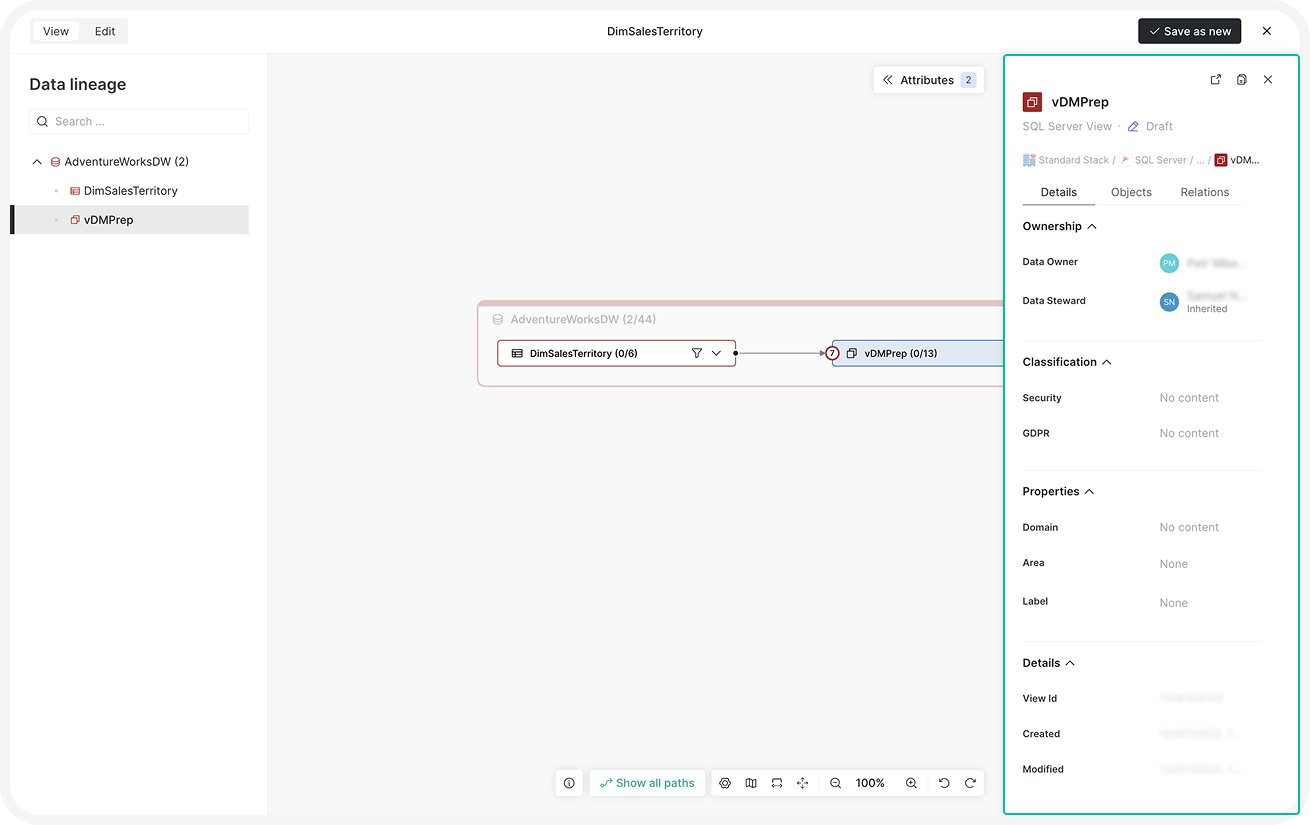 |
Managing objects
You can manage an object in the following ways:
- Add: Create a new object as a child of another object, space, or app.
- Clone: Duplicate an object, with or without its children.
- Export: Download an object as an Excel, Word, or PDF file.
- Rename: Change an object’s display name.
- Change type: Reclassify an object into a different object type.
- Move: Relocate an object to another space or parent.
- Edit attributes: Update the object’s descriptive data.
- Delete: Permanently remove an object.
- Track changes: Review the object’s version history.
For step-by-step instructions, see Object management.
Import and export objects
Beyond exporting a single object from its object page, you can import or export objects at the application level:
- Import: Import objects and attributes into Dawiso from an Excel file. See Object import (Excel).
- Export: Export objects and attributes to Excel, Word, PDF, or OSI YAML. See Object export.
Object hierarchy (Explorer)
The object hierarchy (or explorer) provides a structured view of all objects and how they are nested within one another. It helps users quickly understand the organization of content, navigate through complex structures, and locate related items with ease. This is especially useful when working with large datasets or documentation, as it gives clear context.
Next to your Explorer, click the three dots to:
- Go back to application overview page
- Add a new object
- Sort all objects
- Toggle object numbering
- Export objects
Object numbering
When object numbering is enabled for an application, you can:
- Toggle the function in the Explorer menu and
- Configure the starting number for the sequence.
To configure numbering, open the Numbering dialog:
-
For a single object, click the three dots next to the object in the Explorer and select Numbering levels. The option is available only for objects with child objects.
-
For the whole application, select Numbering levels from the three-dot menu next to the Explorer. Configure the following settings:
-
Numbering starts at level: The level where numbering begins, relative to the opened object.
0keeps the current numbering unchanged.1leaves the object itself unnumbered and starts numbering fresh at its children;2starts at its grandchildren, and so on. -
Numbering pattern (for example,
15.0.): Sets the starting value of each level below the object, one token per level. With no level shift, the object keeps its own number and its children start from the second number in the pattern. With a level shift, numbering starts from the first number in the pattern at the shifted level. To remove a previously stored pattern, clear the field and select Calculate. -
Number direct children from 0: A shortcut that applies the
1.0.0.pattern — children and grandchildren are numbered from 0 — and makes the pattern field read-only. When you reopen the dialog on an object saved with this pattern, the checkbox is ticked.
A live Preview shows the resulting numbering of the subtree as you edit either field, with the current object highlighted. An info notice warns that applying a pattern overwrites the numbering settings of all child objects.
Select Calculate to apply. Numbers recalculate in the background, and the tree refreshes automatically when done.
A number set this way is cleared automatically if you move the object, recalculate numbering on one of its parents, or copy it. In each case, it reverts to inherited numbering.
Numbering in object names
- The assigned numbers become a part of the object name and are automatically updated when changes occur in the object hierarchy. These numbers are also displayed in object names within tables, and (when configured) included in exports.
Numbering in impact analysis
- If object numbering is used in impact analysis, any change to the numbering will automatically trigger a recalculation to maintain accuracy.
Every object has a short, stable URL in the format /obj/{id}, where {id} is the numeric Dawiso ID visible in the object’s URL after /object/. Short URLs continue to work even if the object is moved or renamed.
Other object features
For more information on objects, see the following articles:
- Attachments: Manage attachments for your object.
- Concepts: Create and edit object page concepts.
- Types of attributes: Explore different types of object attributes.