The Business Glossary application is used for defining and managing terms across Dawiso, promoting consistent understanding across the organization. Business Glossary allows the specification of definitions, rules, and policies. These describe the business, company processes, functions, and data. It creates clear explanations and relationships between terms.
See all available Business Glossary attributes and components.
General overview
The Business Glossary application is used for defining and managing key business terminology to support consistent understanding across the organization. It serves as a central repository for standardizing definitions, rules, and indicators, and for documenting how business concepts are applied within specific contexts.
In data-driven environments, inconsistencies in term usage and interpretation are common. For example, the term “revenue” may have different definitions depending on the department: gross revenue for sales, net revenue for finance, or recognized revenue for accounting. Similarly, column names in datasets (e.g., adj_val) often lack clear descriptions, making it difficult to interpret or reuse them correctly in other analyses or reports.
The Business Glossary application addresses these issues by enabling users to document:
- Standardized definitions of business terms and indicators
- Related rules and policies
- Relationships between terms across business domains
By formalizing terminology and linking definitions to rules, processes, and documentation, the Business Glossary supports:
- Accurate interpretation of data across teams
- Reduced ambiguity in reports and analyses
- Improved onboarding and knowledge transfer
- Alignment with compliance and audit requirements
The glossary plays a critical role in metadata governance by bridging technical data structures with business understanding.
Business Glossary object types
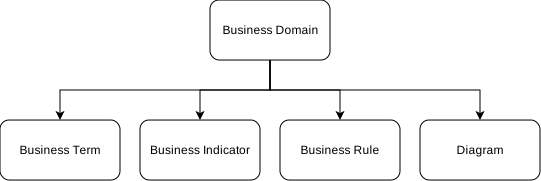
Business Glossary has the following object types:
| Object type | Use |
|---|---|
| Business Domain | Categories for your glossary terms e.g., by departments or business functions. |
| Business Term | A standardized and agreed-upon definition of a specific concept, entity, or attribute within an organization. |
| Business Indicator | A measurable value used to gauge the performance or health of a specific aspect of a business. |
| Business Rule | A statement that defines or constrains some aspect of the organization’s operations, behavior, or decision-making processes. |
| Diagram | A customizable visual representation of your Business Glossary objects and their relations with other objects. For more information, see Modeling diagrams. |
Business Glossary relations
Apart from auto-generated links (mentions), Business Glossary objects can have the related relation between each other or with other object types.
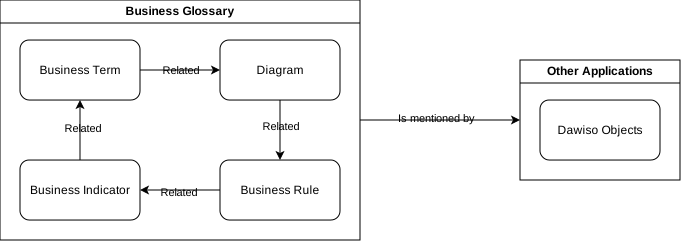
There are two types of relations between Business Glossary objects and other Dawiso objects:
- Mentions
These relations are automatically generated when a glossary term, indicator, or rule is detected in the content of another object (e.g., descriptions or summaries). This creates a two-way link:
- Is mentioned by: The glossary entry is mentioned in another Dawiso object.
- Is mentioning: The object contains a reference to the glossary entry.
This type of relation is facilitated by tokenization to ensure consistent terminology is always accessible where it’s used.
- Related
This relation is manually created and can be used between glossary objects (e.g., connecting a Business Term to a Business Rule) or between a glossary object and another object type in Dawiso. Use this relation to explicitly define conceptual or operational connections that may not be evident from simple mentions.
Key features
Autolinking/Tokenization
Business glossary entries are automatically recognized and linked within object content (e.g., object descriptions) through tokenization. This mechanism identifies word roots, enabling autolinking even when words appear in different inflected forms.
A glossary can be:
- Set as the default, enabling autolinks across all spaces, applications, and objects.
- Restricted to specific spaces, applications, or object types, depending on the use case.
Fullness score
Fullness score measures how completely an object’s attributes have been filled in. Each attribute contributes a percentage toward the total score, for example, adding a description, might complete the score to 60%. Fullness scores:
- Provide a quick indicator of how well an object is documented.
- Help prioritize objects that still need attention.
- Encourage consistent and complete metadata entry across the environment.
See Business Glossary attributes and components for information on the fulness score weight of each attribute.
Synonyms and acronyms
In addition to standard Business Glossary objects, each business term, indicator or rule can have associated synonyms or acronyms. These allow alternate names, such as abbreviations or commonly used variations, to be recognized in text and linked back to the main glossary entry.
Synonyms and acronyms:
- Are stored as separate objects with their own object type
- Appear in the list of relations
- Can be viewed in the Synonyms card on the right-side panel of Business Glossary objects
- Are also listed as child objects of the relevant term or indicator
When searching for a synonym or acronym, the results will include the primary business glossary entry it refers to.
If newly created synonyms or acronyms do not appear immediately, try refreshing the page.
Adding a Business Glossary to your space
- In the top-right corner of your space, click and select + Add application.
- Select Business Glossary and choose your workflow (for more information on workflow types, see Workflows).
Add objects
Add a Business Domain (parent object)
First, add a business domain. Business domains allow you to categorize your glossary entries e.g., by departments or business functions. For example, a ‘Marketing’ glossary (parent object) will contain terms like ‘affiliate marketing’ or ‘bounce rate’ (children objects).
- In your Business Glossary app, click Create in the top navigation bar.
- Name your Business Domain (other object types are not available at this hierarchy level).
- To add a description for your domain, click the icon in the top-right of the Description box to enter the edit mode.
Add a glossary term (child object)
Next, add your glossary entries to the newly created business domain.
-
In your business domain, click Create in the top navigation bar to add an object.
-
Name the glossary entry and select one of the following object types:
- Business term: A standardized and agreed-upon definition of the glossary term.
- Business indicator: A measurable value.
- Business rule: A statement that defines or constrains some aspect of the organization’s operations, behavior, or decision-making processes.
-
Click the icon in the top-right of the text box to enter definitions and calculations for your entry.
Troubleshooting
If newly added Business Glossary entries are not automatically linked in object content, or if newly created content is not linking back to existing glossary entries, follow these steps:
Perform a hard refresh of your browser:
- Windows: Press
Ctrl + Shift + RorCtrl + F5 - macOS: Press
Cmd + Shift + R
If the issue persists:
- Go to Settings > General > Administrative tasks.
- Scroll down and click Refresh keywords.
This will reprocess and update the tokenization (keyword recognition) across all objects in Dawiso. Depending on the size of your environment, the refresh may take several minutes to complete.