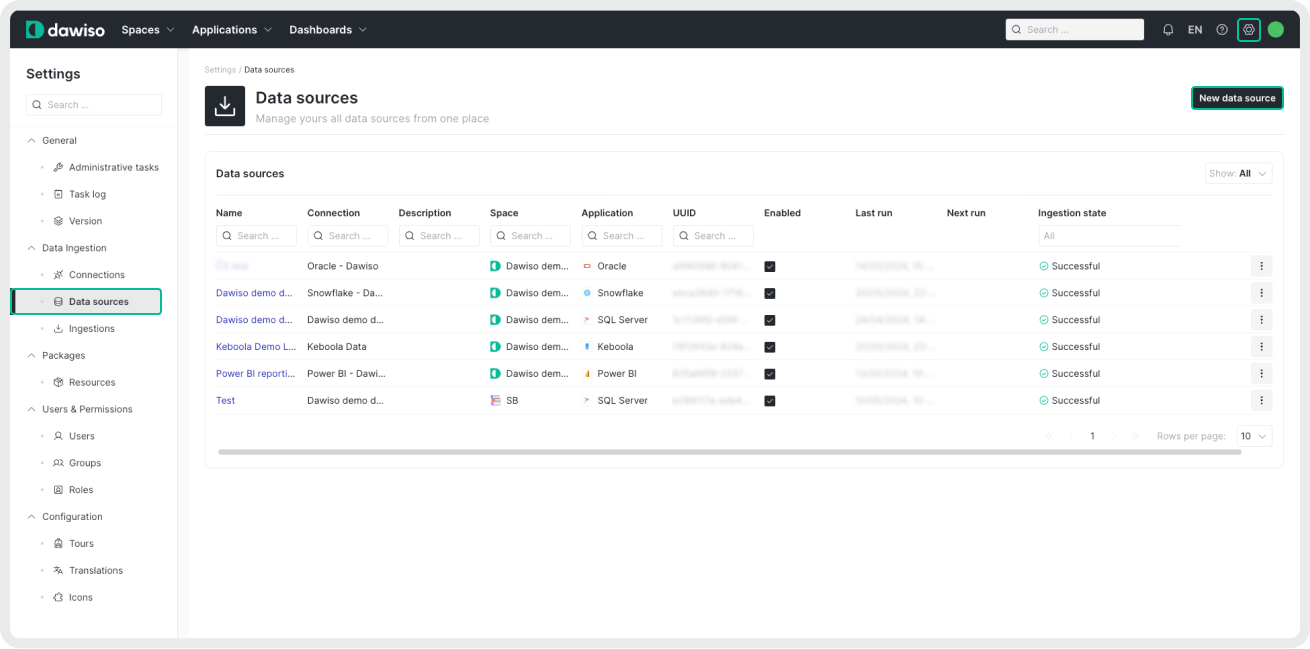
- Navigate to Settings > Data Ingestion > Data Sources.
- Click New data source.
- Select your system and the newly created connection.
- Name your source (and add a description) for easier identification in Dawiso.
Select projects
In this step, select all projects to ingest to Dawiso by listing them using a regular expression, e.g.:
Project1|Project2Editing the list of projects
If you edit the list of projects for an existing and already ingested data source, note the following:
- Newly added projects will be ingested during the next ingestion run.
- Removed projects will be treated as deleted. Dawiso will automatically remove all associated metadata during the next run. This includes any user-added content such as descriptions, ownership, or relations.
Selecting projects by regular expression is only available with organization-level tokens. Project-level tokens already restrict access to specific projects.
Destination configuration
In the Destination configuration step:
-
Select into what space you want to store your ingested metadata. Keep in mind you can select only the spaces you have access to.
-
Select the workflow for ingested objects management. For more information on workflows, see the article on Workflow types.
-
[Optional steps]
Configuration Description Schedule To customize the regular automated ingestion, check the box next to Schedule and adjust the frequency. Optional Settings Specify options supported by the provider in JSON format. Option will be made available based on feedback. For more information, see Optional Settings. Additional Settings Add a JSON formatted list of additional settings that can be used to troubleshoot your custom scenarios. We recommend leaving this field empty unless our Dawiso support team suggests otherwise. Enable AI-Generated Descriptions Enable AI-generated descriptions for your ingested metadata. Descriptions will be generated according to prompts that are defined in packages. Each attribute type can have its own configurable prompt and any AI-generated content will be clearly marked with a banner the text is manually reviewed and saved. Descriptions will be generated on the following levels: database, schema, view, and table. 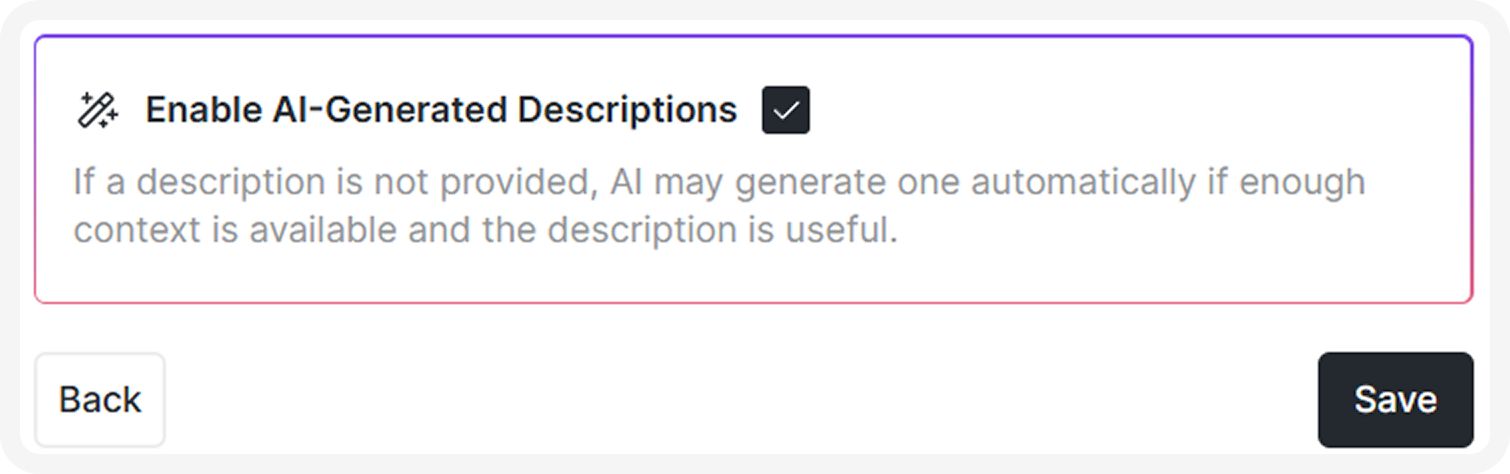
-
Save your data source.
If you delete a data source and then create a new one to the same space, the original ingested data will remain and mix with the new data. To prevent duplicates, always delete the metadata application from the space (with the old source) before creating and ingesting a new one.