The Data Product Catalog application in Dawiso helps organizations document, manage, and share data products across departments, supporting decentralized data strategies such as Data Mesh or Data Fabric.
General overview
In traditional data governance, data is often stored and managed in a centralized data warehouse, with standardized processes and reporting handled by a central team. But modern, agile organizations (especially at scale) cannot always rely on a central data warehouse model. Teams need autonomy and speed, and often manage their own data infrastructure.
That is where the concept of data products comes in.
Each team, from marketing and product to analytics and engineering, may produce and consume their own data products: datasets, APIs, reports, or streaming outputs. These products are shared across the organization and reused by other teams. However, without structure, visibility, or ownership, this decentralized model can lead to chaos.
The Data Product Catalog provides a way to map data products so that every team knows what exists, who owns it, and how it can be used.
Data products can take many forms depending on your organization’s needs and technology stack. For example:
- A Snowflake view combining sales and customer data, shared across multiple departments.
- A Kafka stream delivering real-time clickstream data to product and marketing teams.
- A Power BI dashboard used for operational reporting, with documented input sources and owner.
- A REST API exposing key reference data to external systems.
- A Google BigQuery dataset sourced from marketing platforms for campaign analytics.
- A Python-generated file feed regularly exported and consumed by another team or system.
Data Market
Once your data products are fully documented and published, they become available in the Data Market, which allows all users to:
- Discover available data products across spaces
- Search for specific platforms or technologies (e.g., “all products using Google Cloud Platform”)
- Access and request data products in a structured, governed way
Data Market supports data discoverability and democratization, making it easy for anyone in the organization to find and reuse trusted data products.
Data Product Catalog object types
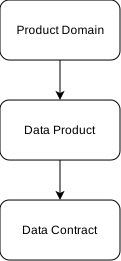
The Data Product Catalog is organized around three core object types: Domains, Data Products, and Contracts.
| Object type | Description |
|---|---|
| Product Domain | Domains represent logical areas of the organization, such as Sales, Marketing, or Customer. They serve as containers for related data products. |
| Data Product | A data product is an object that represents a structured, reusable set of data assets designed to deliver value to internal or external consumers. |
| Contract | Contracts document how data flows between data products and under what terms it can be used. |
Data Product Catalog relations
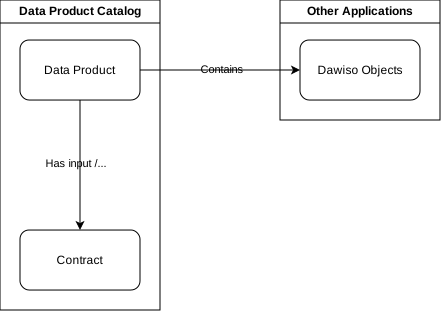
There are two types of relations for Data Product Catalog objects:
- Contains
This relation connects Data Products and other objects in Dawiso (e.g., datasets, business terms).
- Contains: The data product contains information from another Dawiso object.
- Is contained in: The object is used in a data product.
- Has input/output
A data product can be linked to other products via contracts. There are two type of relations for data products:
- Has input: The data product is a data consumer as it uses other data products as its input.
- Outputs contract: The data product is a data producer as it is used as input in other data products.
For more information, see Key features below.
Key features
Contracts: Document usage and responsibilities
To support these relations, Dawiso allows the documentation of contracts between data products. A contract formalizes the connection between a data producer (the source product) and a data consumer (the dependent product), specifying how the data can be used and under what conditions.
Each contract:
- Connects two data products with a clear producer–consumer relationship.
- Can include SLA details, such as bug resolution times or update frequency.
- Allows for issue reporting and communication between product owners.
- Appears directly in the lineage view, making data dependencies and responsibilities easy to trace.
Together, lineage and contracts provide a complete picture of how and under what conditions data products interact.
Data lineage: Understand how your data products connect
One of the main features of the Data Product Catalog is the data product lineage. It visually maps the relations between data products, showing which products are built from others, and which products depend on them.
For example, a team might combine reports from Marketing, Sales, and Customer Support into a new product. In Dawiso, this relation is clearly shown in the lineage view, helping everyone understand where data comes from and how it flows across teams.
This improves transparency, with impact analysis, ownership clarity, and supports collaboration between data producers and consumers.
Workflow logic
Each data product in Dawiso includes key metadata and supports a workflow that mirrors its lifecycle, from idea to delivery.
Design → In Development → Ready for Publishing → Published
This lifecycle workflow supports both the documentation of existing products and the creation of new ones.
Adding a Data Product Catalog to your space
To start using the Data Product Catalog application, first add it to your space.
- In the top-right corner of your space, click and select + Add application.
- Select Data Product Catalog and the Data Product Workflow.
Adding a Domain and a Data Product
Let’s start with creating a domain for our data products, which serve as containers for categorization.
- In your Data Product Catalog app, click Create in the top navigation bar to add an object.
- First, add an object with the Data Domain object type.
- While in your Data Domain, click Create in the top navigation bar. Add a new Data Product object.
Add products before creating contracts between them.
Adding a Data Contract
Once your products have been created, you can now create relations between them.
- On your Data Product page, click Create in the top navigation bar. Add a new Data Contract.
- Scroll down to the Data Producer or Data Consumer component. In the top-right corner of the component, click and select a product to link.