The Diagrams application allows you to create and manage standalone diagrams to visualize metadata relationships, data lineage, or custom structures without affecting shared or system-generated diagrams. It enables flexible, personalized visual exploration while preserving the integrity of centrally maintained diagrams.
For more information on how to work with diagrams, see Actions in Diagrams.
See all available Diagram attributes and components
General overview
In Dawiso, system-generated diagrams like data lineage or knowledge graphs are often shared across users and reflect the most current metadata. However, editing these shared diagrams can impact others, and they automatically update when metadata changes.
The Diagrams application addresses this by allowing you to create standalone diagrams, editable copies of the originals that remain separate from system updates. These diagrams provide flexibility for personalized views, without affecting the source or other users.
Typical use cases include:
- Preserving a snapshot of a diagram at a specific point in time for reporting, audits, or version tracking.
- Customizing visual layouts for analysis, documentation, or presentations.
- Exploring alternative flows or structures without affecting production diagrams.
- Adding notes and annotations for reviews, discussions, or workshops.
By separating diagrams from the originals or automatic updates, you gain full control over how, when, and why a visual representation is modified or saved.
Diagrams object types

The Diagrams application has the following object types:
| Object type | Description |
|---|---|
| Diagrams Folder | A container for organizing diagrams and folders in a nested hierarchy. |
| Diagram | A static copy of a lineage or knowledge diagram that can be independently edited. |
Diagrams relations
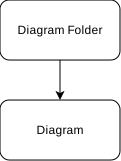
Standalone diagram objects have one relation type:
- Diagram contains: Dawiso objects included in the visual diagram.
- In diagram: Reverse relation indicating which diagrams a given object appears in.
This relation type ensures that each diagram accurately reflects selected metadata objects while maintaining traceability between the visual representation and the underlying data structure.
Key features
Standalone visualizations
Once saved, a diagram becomes a standalone object, disconnected from automatic updates. However, it retains its reference to the original data, allowing you to manually sync changes using the Update button. This lets you selectively refresh diagram content when the underlying data changes, such as added relations or updated attributes.
Editable and annotated views
Standalone diagrams can be:
- Annotated with visual elements
- Customized with user-specific layout changes
- Used for documentation or workshop purposes without affecting other users
This makes Diagrams a useful tool for communicating data flows, dependencies, or governance structures in a way that’s relevant to your audience.
Adding Diagrams to your space
- In the top-right corner of your space, click and select + Add application.
- Select Diagrams and choose your workflow (for more information on workflow types, see Workflows).
Add a Diagram Folder
Adding a Diagram Folder is an optional step but it is recommended for better to categorization of your diagrams.
- In the Diagrams app, click Create in the top navigation bar.
- Name the new object and select Diagram Folder.
- Click the icon in the top-right of the Description box to add a description for your folder.
Create a Diagram object
A new Diagram object can be created in two ways:
- Create a new Diagram object in the Diagrams application.
- Edit an existing diagram and save it as a new object.
- Users can also interact with existing diagrams by adding comments or drawing directly on them. Once modifications are made, you can save these changes as a new, independent diagram object.
The Diagrams application ensures that the original diagrams remains unchanged, while the edited version reflects specific adjustments or annotations.
A. Add a new Diagram object
- After you create a new diagram object, scroll down to the Data Lineage component.
- Using the Search objects search bar, select your object to open its diagram.
- In the top-left corner, switch to the Edittab.
- Edit the diagram as needed and click Save in the top-right corner.
B. Edit an existing diagram
To first create a lineage diagram to then save it as a diagram object, follow these steps:
- Navigate to your Dawiso object and scroll down to the Diagram component.
- In the top-right of the diagram, click on the Fullscreen button to open it.
- In the top-left corner, switch to the Edit tab to edit the diagram.
- Make your changes and click Save in the top-right corner to create a diagram object.
- Name your diagram and select which space with the Diagrams app you want to save the new diagram to.
- Confirm the creation.