Use Dawiso Integration Runtime (DIR) to ingest data from your local SQL Server Analysis Services instance running in Tabular mode. This is necessary as SSAS supports only domain (Windows) authentication, making it not possible for Dawiso to connect to it directly from cloud.
Configuration prerequisites
- Download DIR to your local infrastructure.
- Run DIR under a domain (Windows) account that has been granted to access SSAS instance.
You have two options how to configure your SSAS instance security to allow databases ingestion:
- Server-level access: Scan all available databases.
- Database-level access: Scan specific databases.
Server-level access
Server-level access is used to scan and ingest all available databases on your server.
- Create new local Windows account or use an existing Windows or domain account (e.g., DatwisoIntegration).
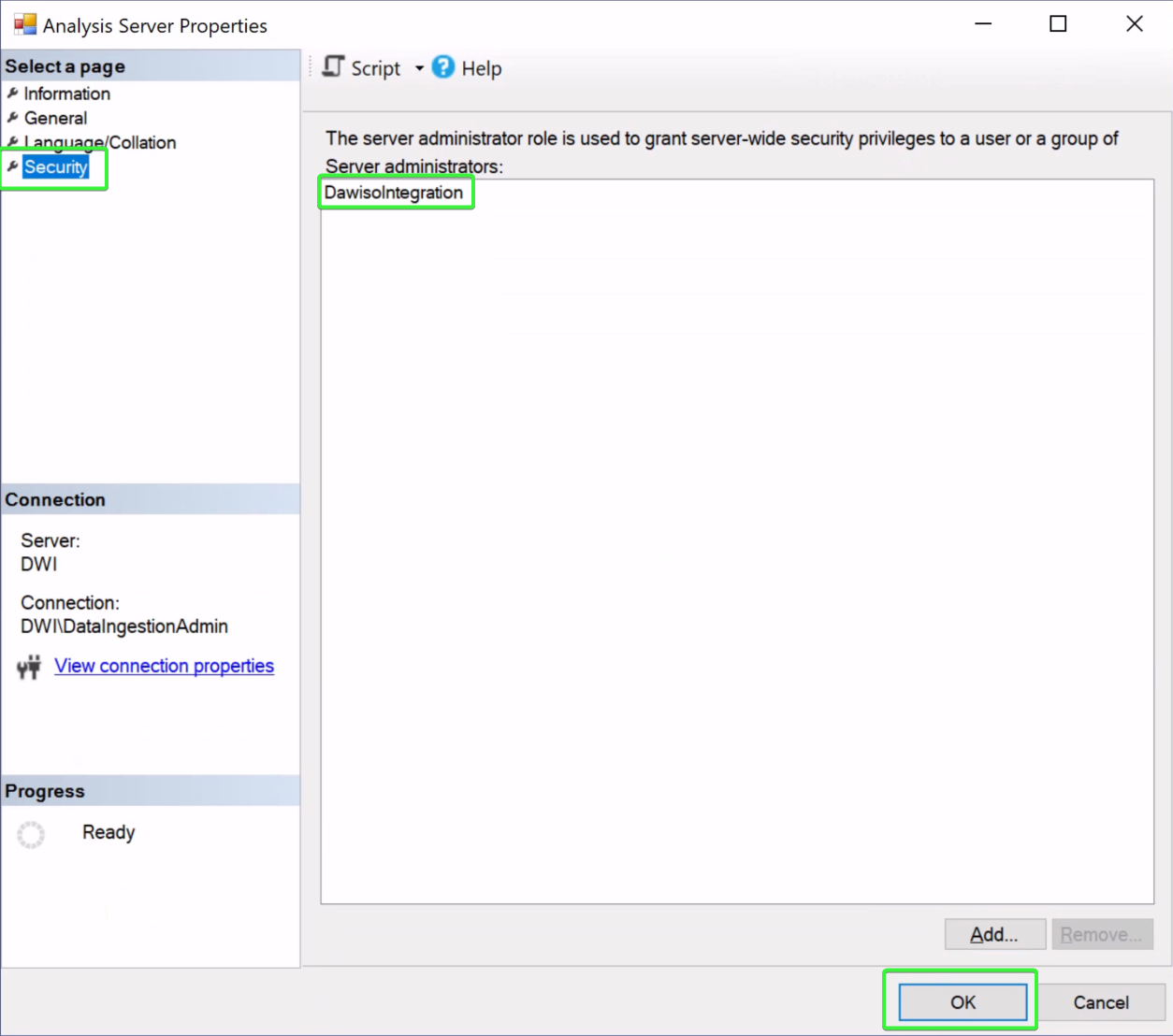
- In the SQL Server Management Studio, right-click the SSAS instance server name.
- Go to Security and add your account (in our case DatwisoIntegration).
Run DIR
If you have not done so already, download DIR and configure it to run locally under the same domain (Windows) account that have been granted to SSAS in the previous step.
The “setting” section of your DIR configuration file should be set to look like the following:
{"permissionsLevel": "server","includedDatabases": "MyDatabase1,MyDatabase2, ...","excludedDatabases": ""
}- Set
permissionLeveltoserver - [Optional] Use
includedDatabasesorexcludedDatabaseskeys to filter (include or exclude) databases.
Database-level access
Database-level access is used when the Dawiso integration account cannot be allowed full admin access to the SSAS instance. In this case, you can instead grant the integration account access to individual databases.
The following steps must be repeated for each database you want to scan:
- Create new local Windows account or use an existing Windows or domain account (e.g., DatwisoIntegration).
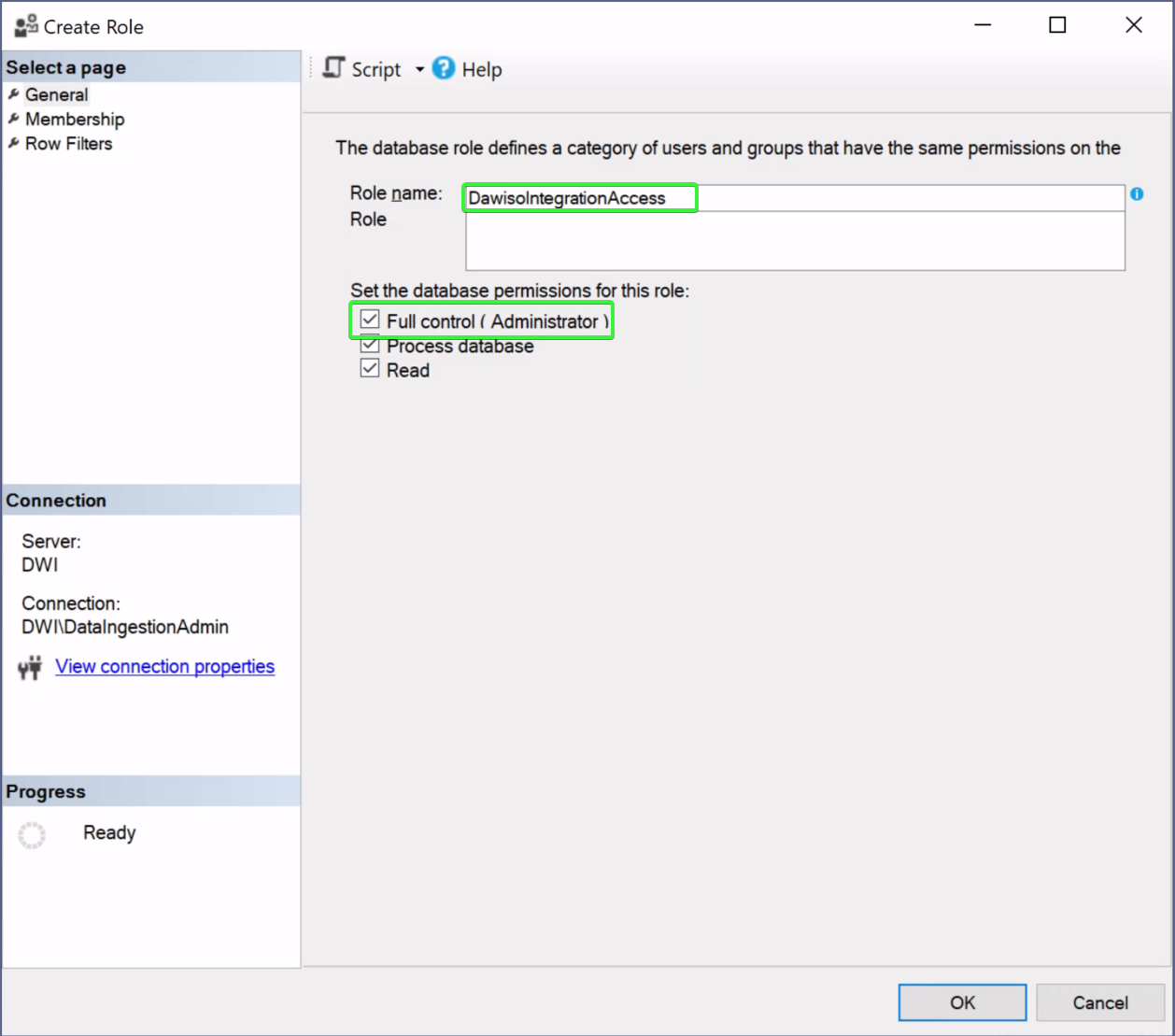
- In SQL Server Management Studio, navigate to Roles and right-click it.
- Create new role (e.g., DawisoIntegrationAccess) and grant it Full control (Administrator) permissions.
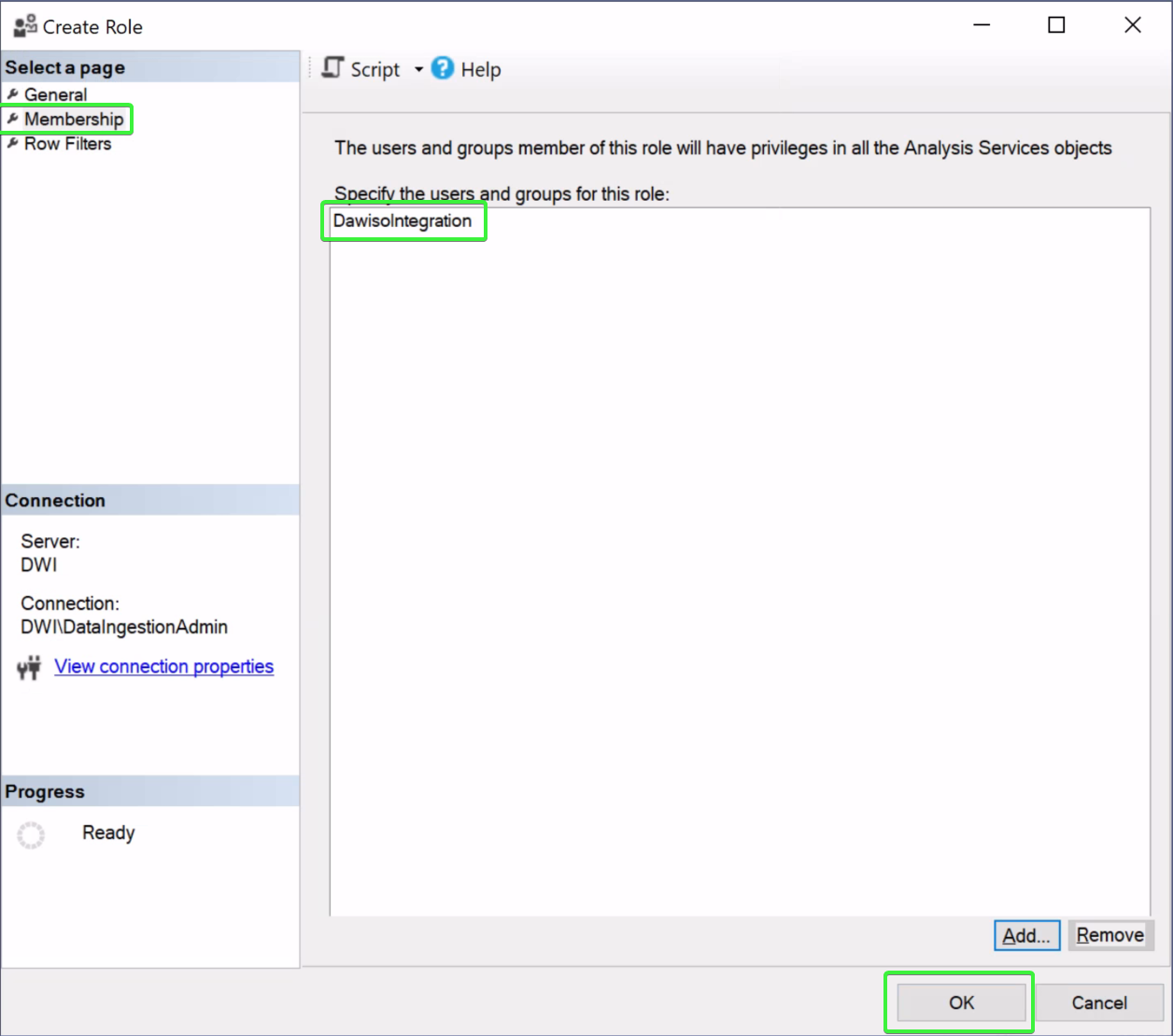
- Go to Membership and add your integration account (in our case DawisoIntegration). Press OK and save the form.
Run DIR
If you have not done so already, download DIR and configure it to run locally under the same domain (Windows) account that have been granted to SSAS in the previous step.
The “setting” section of your DIR configuration file should be set to look like the following:
{"permissionsLevel": "database","includedDatabases": "MyDatabase1,MyDatabase2, ..."
}- Set
permissionLeveltodatabase - Use the
includedDatabaseskey to specify which databases will be scanned.- in case you will specify database that doesn’t exists on the server or permission are not set, ingestion will fail and you must correct the list manually
Ensure that all specified databases exist and that you have the necessary access permissions. If not, the ingestion process will fail.