To ingest metadata from on-premises sources that can’t be accessed from the public Internet (due to e.g., security concerns, firewall), use Dawiso Integration Runtime (DIR). For more information on DIR and how it works, see Dawiso Integration Runtime (DIR).
Download DIR in this section.
Add a private connection
To ingest metadata from your on-premises sources, make sure to whitelist Dawiso IP address for Dawiso to connect to your internal sources (pull method). The same IP should be whitelisted for Dawiso Integration Runtime (DIR) to send data from your on-premises infrastructure to Dawiso cloud (push method).
To obtain the Dawiso IP address, contact your key Account Manager at Dawiso.
First, add a new connection
- On the Connections page, click New connection.
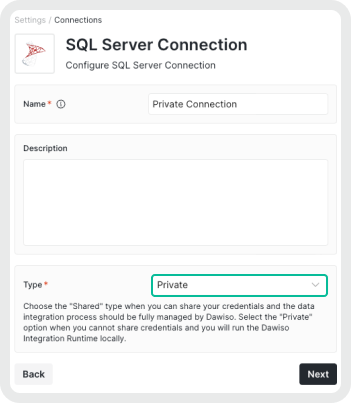
- Select your service, name the connection, and select Private connection type. Click Next.
- In the mandatory Authentication fields (marked by *), use placeholder credentials. Make sure to NOT use your actual credentials, those will be provided later.
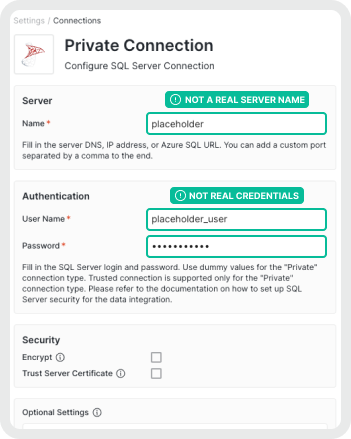
- Save your connection.
Next, add a data source
- On the Data sources page, click New data source.
- Select your service and the newly added connection. Click Next.
- Name your data source and click Next.
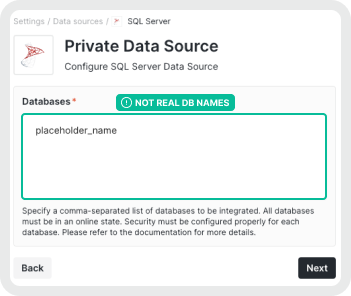
- In the Databases* field, again, use placeholder names. Real databases will be provided later when using your local machine.
- Finish setting up your data source by selecting your space and workflow.
- DON’T set up any scheduling, this will be taken care of by the local machine.
- Save your data source.
Finally, get the JSON configuration file
- On the Data sources page, identify your data source, click the three dots and select Information.
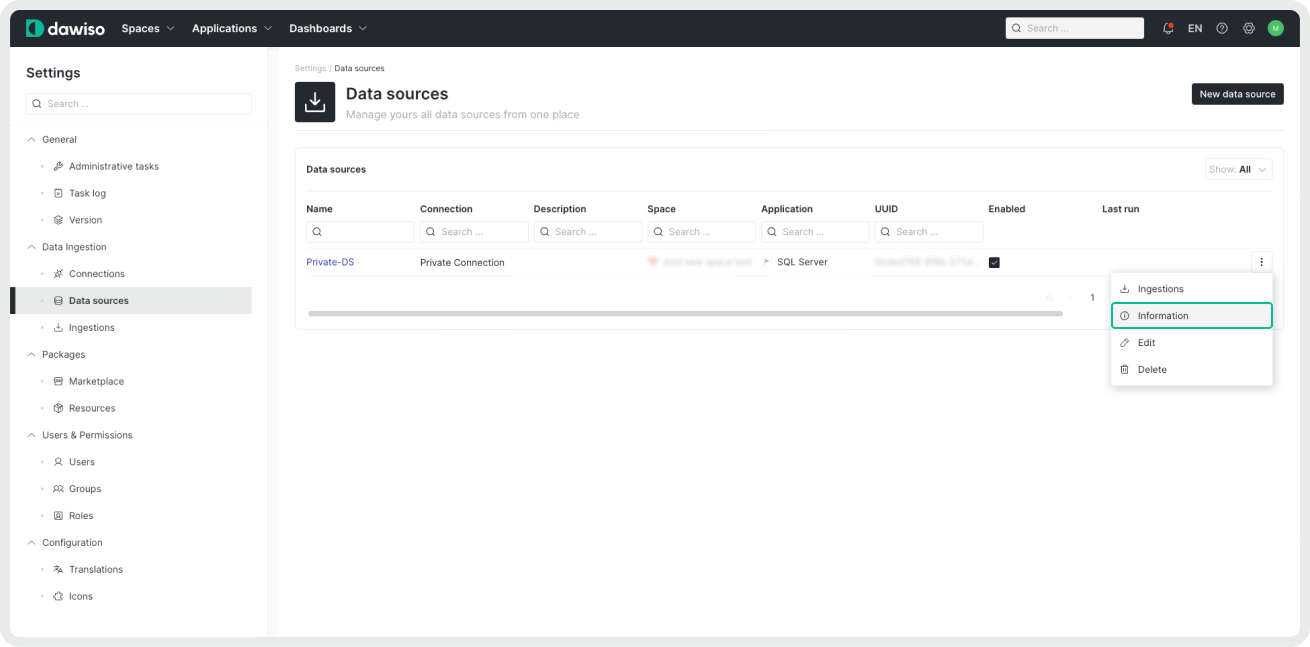
- A window with the data source configuration JSON will pop up.
- Copy the whole configuration JSON.
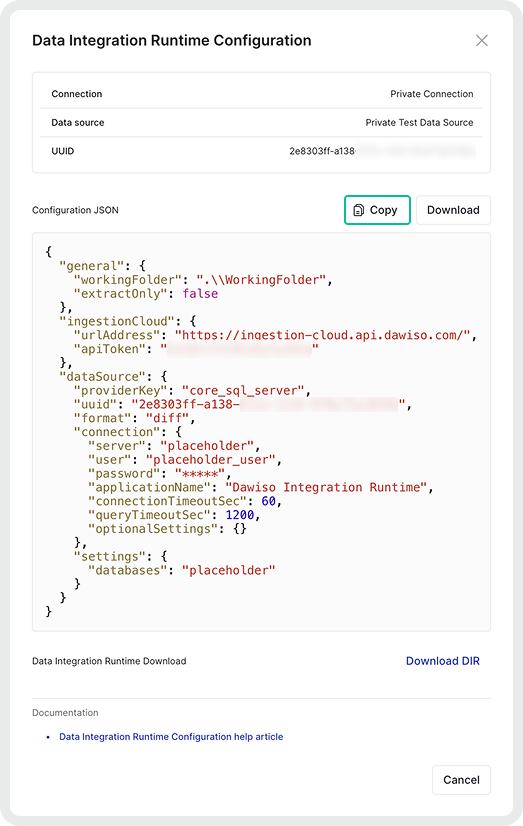
Download DIR to your local device
Download DIR from this link. Select DIR version based on your machine.
| DIR file | When to use |
|---|---|
integration-runtime-linux.zip | For use on Linux and macOS systems. |
integration-runtime-windows.zip | Select this version if you have .NET 10.0 on your local machine. If necessary, you might receive a prompt with links and instructions on how to download .NET. |
integration-runtime-windows-self-contained.zip | Select this all-included version if you don’t have admin permissions to install .NET on your local machine. |
Run DIR on your local device
- Unzip the downloaded DIR file.
- In the same place as the DIR file(e.g., in the same folder), create two new files (using Notepad, Notepad++, or Visual Studio Code, etc.):
- Name the first file
SQL_Server_Config.json.- Open the file and paste in the Dawiso data source configuration JSON.
- Change all the placeholder credentials in the JSON to your actual credentials.
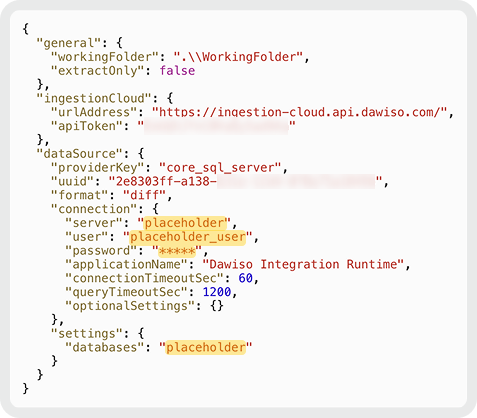
- Name the second file
SQL_Server_Ingest.bat.-
Add the following command in the file
C:\DIR\App\DawisoIntegrationRuntime.exe -c C:\DIR\SQL_Server_Config.json -
This file will run the DIR exe program with the instructions provided in the
SQL_Server_Config.jsonfile.
-
- Name the first file
To append DIR console logs to a text file instead of overwriting it each time, use the following syntax in your .bat file:
DawisoIntegrationRuntime.exe -c SQL_Server_Config.json >> logs.txt
This ensures logs from each run are preserved in the same file.
| --- |3. Wait for the test ingestion to finish.
4. [Optional] Check the logs in the console or in the following folder: [/WorkingFolder]\\WorkingFolder to confirm whether the ingestion was successful.
5. Once you confirm that everything is working correctly, use e.g., Windows Task Scheduler to execute the.bat file (= data ingestion) regularly.
We recommend scheduling the ingestion to be once a day at the same time, e.g., after every nightly data warehouse build.
If you ingest data from multiple technologies using DIR, make sure each technology has its own JSON config and BAT files.
- SQL_Server_Config.json —> .bat file with C:\DIR\App\DawisoIntegrationRuntime.exe -c C:\DIR\SQL_Server_Config.json
- PostgreSQL_Config.json—> .bat file with C:\DIR\App\DawisoIntegrationRuntime.exe -c C:\DIR\PostgreSQL_Config.json
Run DIR on your local device (macOS)
To run DIR on a macOS device, download the DIR file for Linux.
-
Make sure you have the latest .NET runtimeinstalled.
- If you have the Homebrew package manager, run the following command instead:
-
brew install dotnet@8
-
Unzip the downloaded DIR file.
-
In the same place as the DIR file (e.g., in the same folder), create a new file (using Notepad, Notepad++, or Visual Studio Code, etc.) and name it e.g.,
fabric_dir_config.json.- Open the file and paste in the Dawiso data source configuration JSON.
- Change all the placeholder credentials in the JSON to your actual credentials.
- Change the working folder (2nd line) to
fabric-dir.
-
In the DIR folder, open the terminal and run the following command to start the ingestion:
-
dotnet DawisoIntegrationRuntime.dll -c fabric_dir_config.json
-
-
Wait for the test ingestion to finish.
-
[Optional] Check the logs in the console to confirm whether the ingestion was successful.