The search function in Dawiso helps users quickly find information within their Dawiso environment, which is essential for navigating large structures and locating specific objects or attributes without browsing manually.
Basic search functions
Basic search allows you to look objects up directly by name. Initiate the search bar:
- On the homepage.
- In the top navigation panel.
- By pressing the forward slash (
/) key.
If you do not know the exact object name, use the advanced search feature. Searches are not case-sensitive and ignore diacritics.
Search results
Every search result contains the following information:
- Object name
- Application where the object is • Object type • Object path
- Workflow state
Available actions:
- Click the object name to immediately get redirected to the object page.
- Click the object tile (not its name) to see a preview of the object detailsin an adjustable right panel. Menu in the top-right of the right panel allows you to:
- Open the object page in a new window
- Copy the object path URL
Advanced search functions
Facets
The advanced search employs a faceted technique, often referred to as “Faceted Search,” which utilizes smart filters to refine search results effectively. There are three variations to suit different needs and contexts:
- Mini-faceted search hides the filters by default, making it convenient for quick access from various locations.
- Medium-faceted search is accessible immediately from the homepage and top navigation bar, offers a basic selection of filters.
- Advanced faceted search provides a comprehensive range of detailed filters and options for thorough searches.
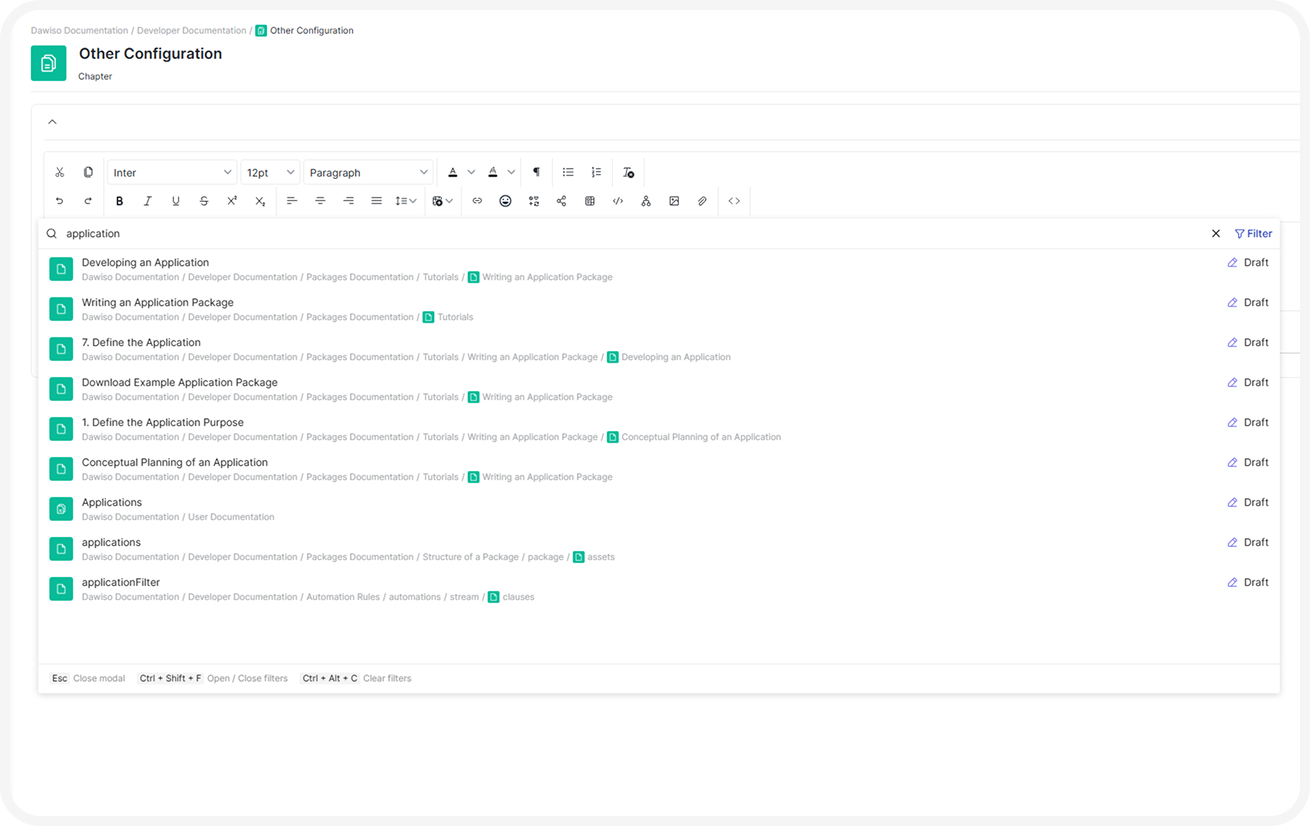
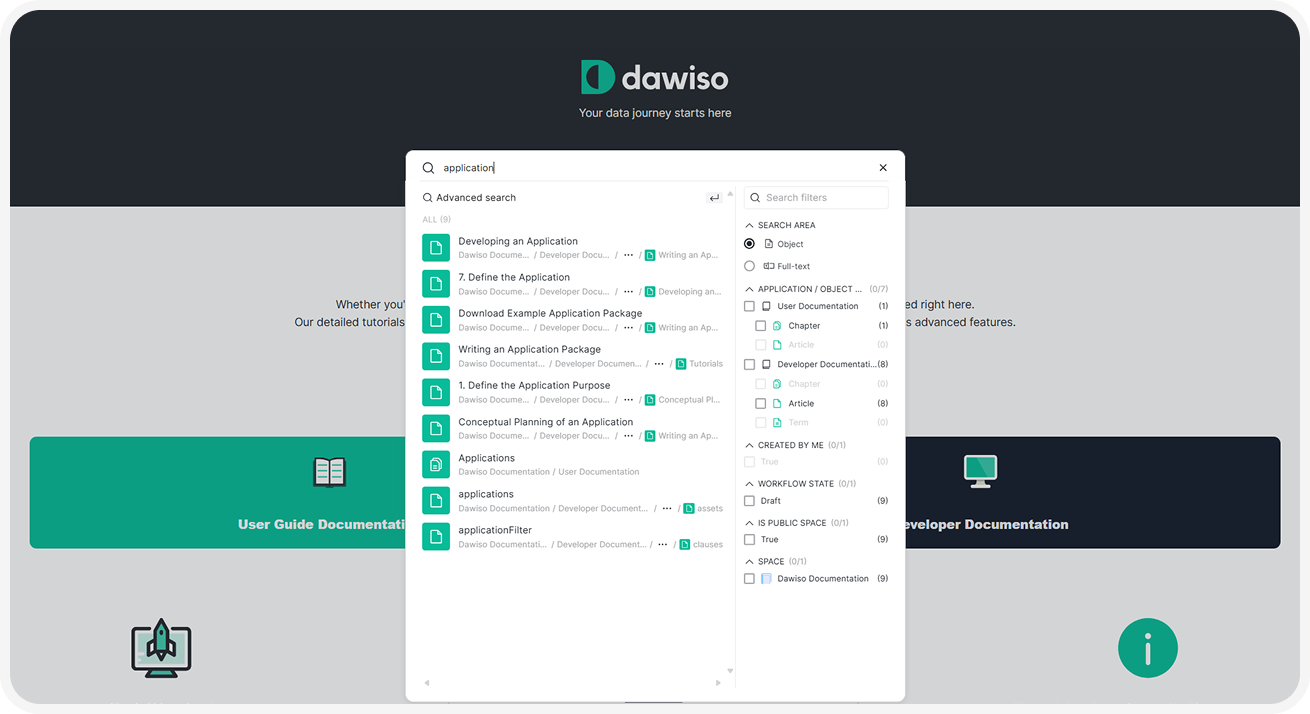
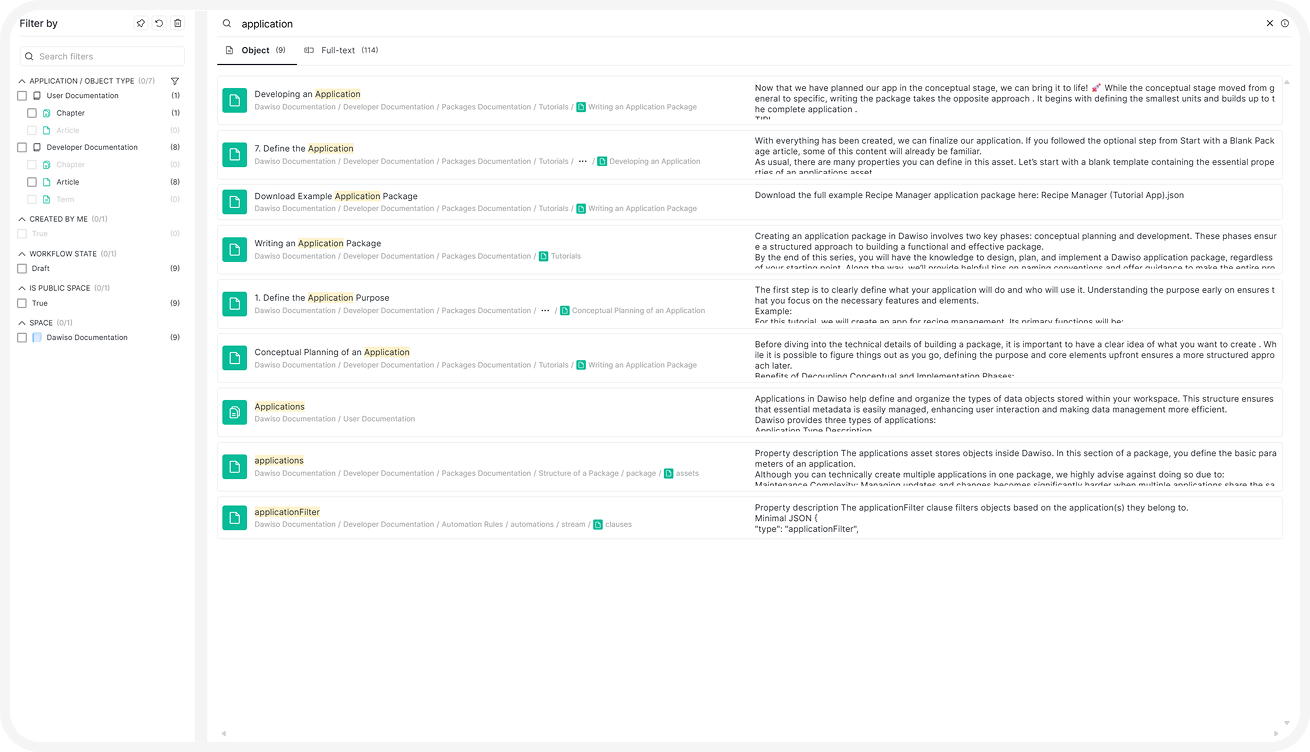
Advanced search allows you to save your facet configuration.
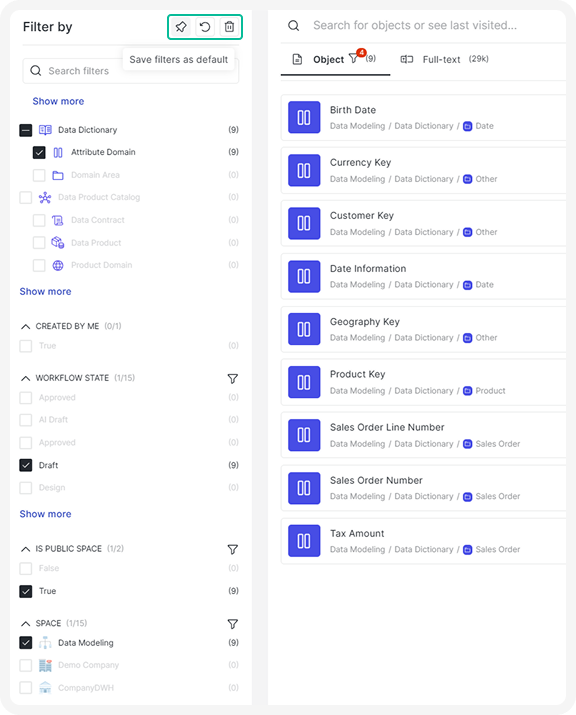
- Select your filters and click the pin icon to save the configuration as default. The next time you open the advanced search, these filters will be selected by default.
- Click the Return icon to restore the default filters set by Dawiso.
- Click the trash canto clear the currently selected filters.
Full-text search
If you cannot find your object but know some word or phrase used in its attribute, use the full-text search. Change your search area to Full-text in the search drop-down or open advanced search.
Keep in mind that unlike searches,relational operators are case sensitive.
Relational operators
| Operator | Results | Example |
|---|---|---|
AND | Include all specified words or phrases. | documentation AND examples |
OR | Include any of the specified words or phrases. | documentation OR examples |
NOT | Excludes results that contain the specified words or phrases. | NOT examples |
STARTS | String begins with the specified characters. | STARTS doc |
ENDS WITH | String ends with the specified characters. | ENDS WITH on |
CONTAINS | Contain the specified words or phrases anywhere in the text. | CONTAINS men |
* (asterisk) | The asterisk (*) acts as a wildcard that can replace any number of characters in a search query. Asterisk at the end: Include only entries that begin with the specified prefix., Asterisk at the beginning: Include only those entries that end with the specified suffix. In other words, the asterisk serves as an alternative to STARTS and ENDS WITH. | Sta* > statement, state *able > enable, disable |
Recommended objects
By default, when you open advanced search, it will display the following:
- Last Searches: Your last searched keywords.
- Last Opened: Your last opened objects.
- Recommended Objects: Recommended objects are selected using machine learning that predicts potential usage based on previous searches.
Search in Explorer
Another way to look for objects is through the Search bar in the object Explorer on the left. However, you will be able to look up only the objects that are displayed in the current object hierarchy. In other words, you can see the lists of:
- Spaces
- Apps
- Objects (after selecting a specific app)