You can add objects manually, or import them by scanning a data application, which you will learn in Step 5: How to automatically scan data.
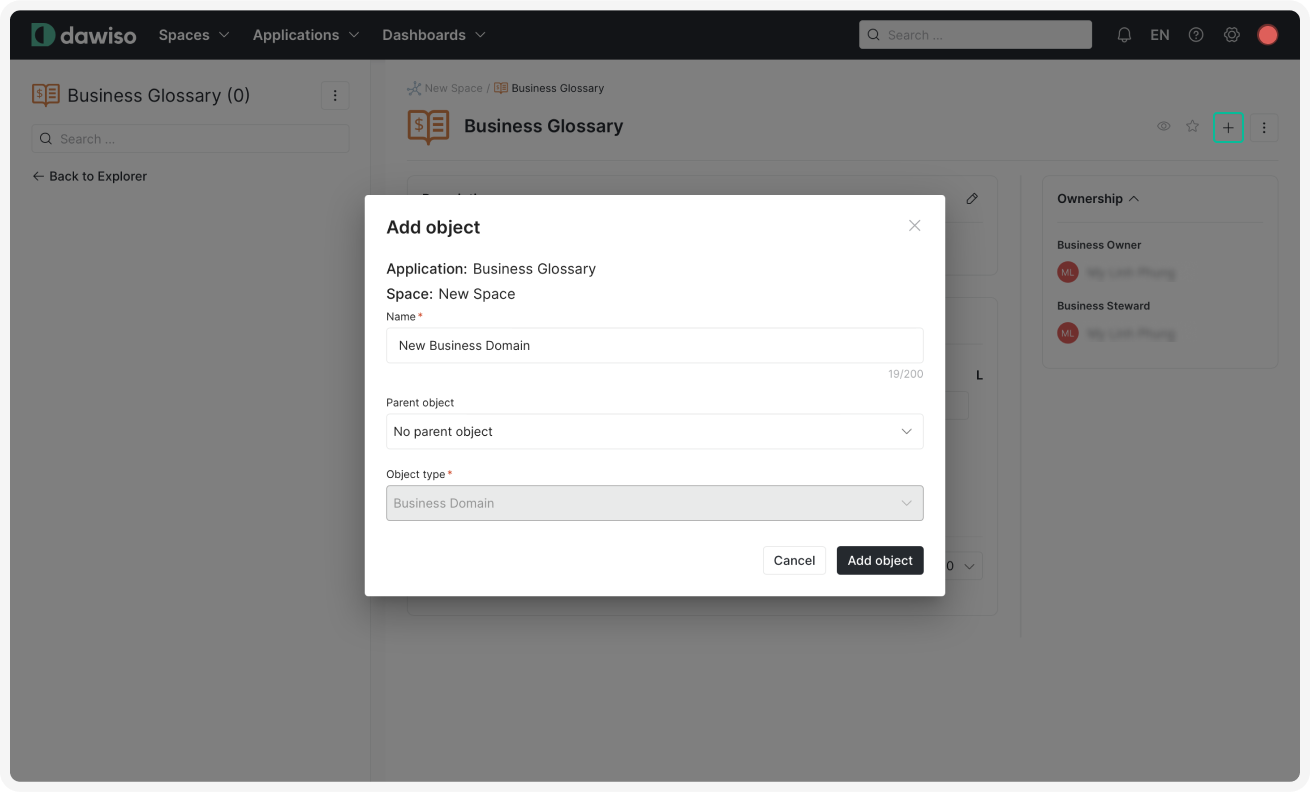
For the Business Glossary app, we need to first add a parent object which will serve as a container for all relevant children objects.
For example, a ‘Marketing’ glossary (parent object) will contain terms like ‘affiliate marketing’ or ‘bounce rate’ (children objects).
- In the top-right corner of your Business Glossary app, click .
- Name your parent object. The object type is predetermined to be a Business Domain. Business domains allow you to categorize your glossary however you need, e.g., by departments or business functions.
- Click Add object to create your business domain.
- Click the icon in the top-right of the Description box to add a description for your business domain.
Now, let’s add your glossary entry.
-
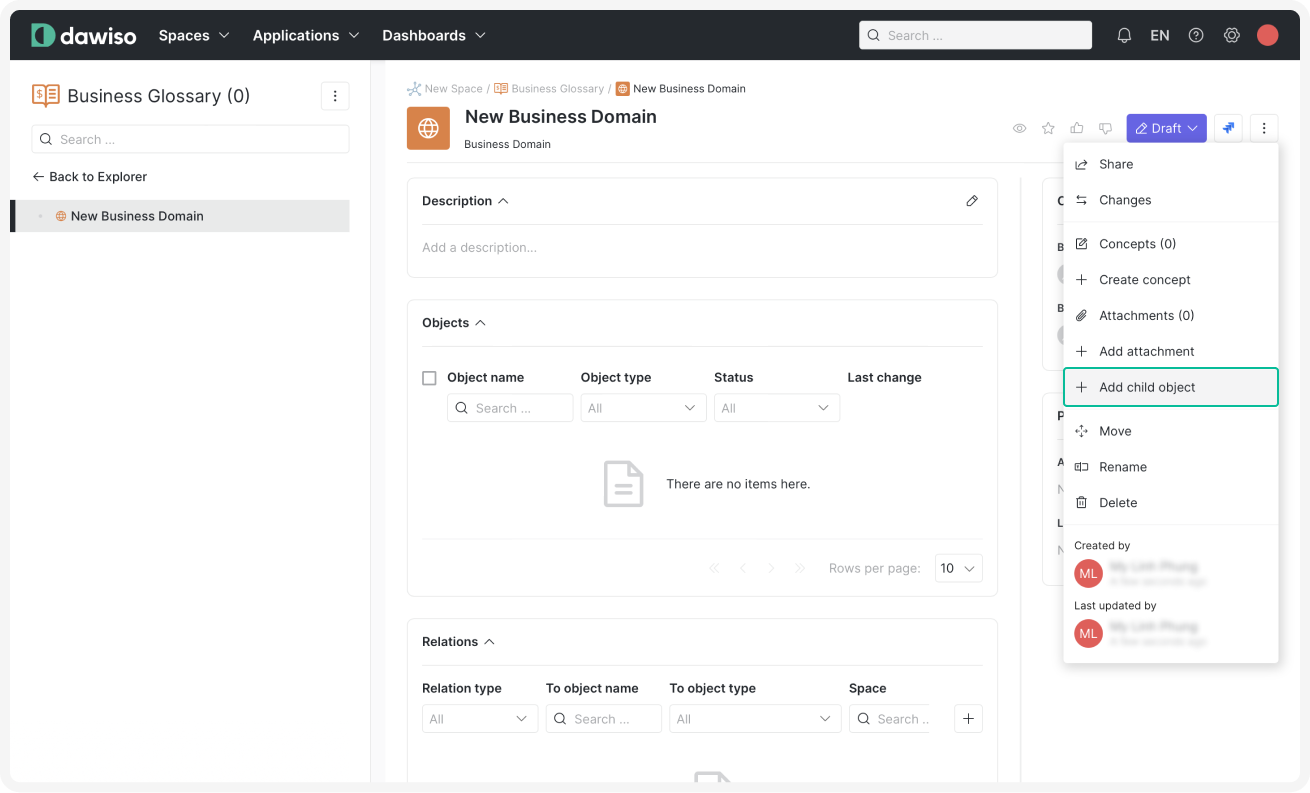
In the top-right corner of your business domain (parent object), click the three dots and select + Add child object.
-
Name your glossary entry and select one of the following object types:
Object type Definition Attributes Business term A standardized and agreed-upon definition of a specific concept, entity, or attribute within an organization. Definition Business indicator A measurable value used to gauge the performance or health of a specific aspect of a business. Definition, calculation Business rule A statement that defines or constrains some aspect of the organization’s operations, behavior, or decision-making processes. Definition, calculation -
Click Add object to create your glossary entry.
-
Click the icon in the top-right of the Definition box to add a definition of your new glossary entry.
Attributes provide key information about objects themselves. For example, each business glossary entry should have its own unique definition.