Defining workflows is crucial for enhancing efficiency and productivity by streamlining processes and ensuring consistency. It improves communication and collaboration by providing a common understanding of processes. For this reason, you need to select a workflow type for each application.
Workflow types
Dawiso offers the following workflow types:
- Default workflow: Full lifecycle with review, approval, and expiration states.
- Basic workflow: Simplified approval with draft, approved, and archived states.
- Checklist workflow: Task-oriented with to do, in progress, and done states.
- Empty workflow: N workflow states associated with the application.
Default workflow
Depending on your user role, you will have access to different workflow states. In the graph below, you can see the Default workflow states and how they interact with one another.
- Contributor can:
- Add an object in the
Draftstate. - Change
Returnedobjects to theDraftstate. - Change
Cancelledobjects to theDraftstate.
- Add an object in the
- Data steward can change the workflow state to (in)
Review, and then move the object to the following states:Cancelled: After being cancelled, the object can still be given back to the contributor and moved to theDraftstate.Approved: After being approved, the object can still be moved to theExpired, or toReturnedstate.

Basic workflow
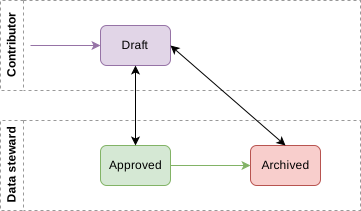
Depending on your user role, you will have access to different workflow states. In the graph below, you can see what the Basic workflow states and how they interact with one another.
- Contributor can add an object in the
Draftstate. - Data steward can move the object to the
Approvedworkflow state.Archived: An object in theApprovedstate can be moved to archived.- Both approved and archived objects, can be returned to the the
Draftstate for the contributor to update.
Checklist workflow
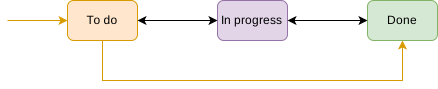
In the graph below, you can see the Checklist workflow states and how they interact with one another.
- An object is first added in the
To dostate. From here an object can be moved to the following states:In progress: Object can then be moved back to theTo doorDonestates.Done: Object can then be moved back to theIn progressstates.
Draft approval process
Applying concepts can be restricted to users with specific permissions, adding an additional step to the workflow:
- Once a contributor finishes their draft, they must click the Send for Approval button.
- A notification is sent to all users with permission to apply the concept.
- Depending on your workflow configuration, once one or all users approve the concept, one of them can apply it.
Multiple users approval
Click on the workflow state to view information such as:
- Who still needs to edit the object
- Who still needs to approve the object
Custom workflow configuration
Workflows can be customized by admin user via packages. Here, it is possible to configure custom:
- Workflow type and its diagram (diagrams are PNG files added for every workflow type and available in-app)
- Workflow states
- Allowed state transitions and who can change them
Custom workflows are available for all applications. It is not possible to restrict a workflow to a specific application.