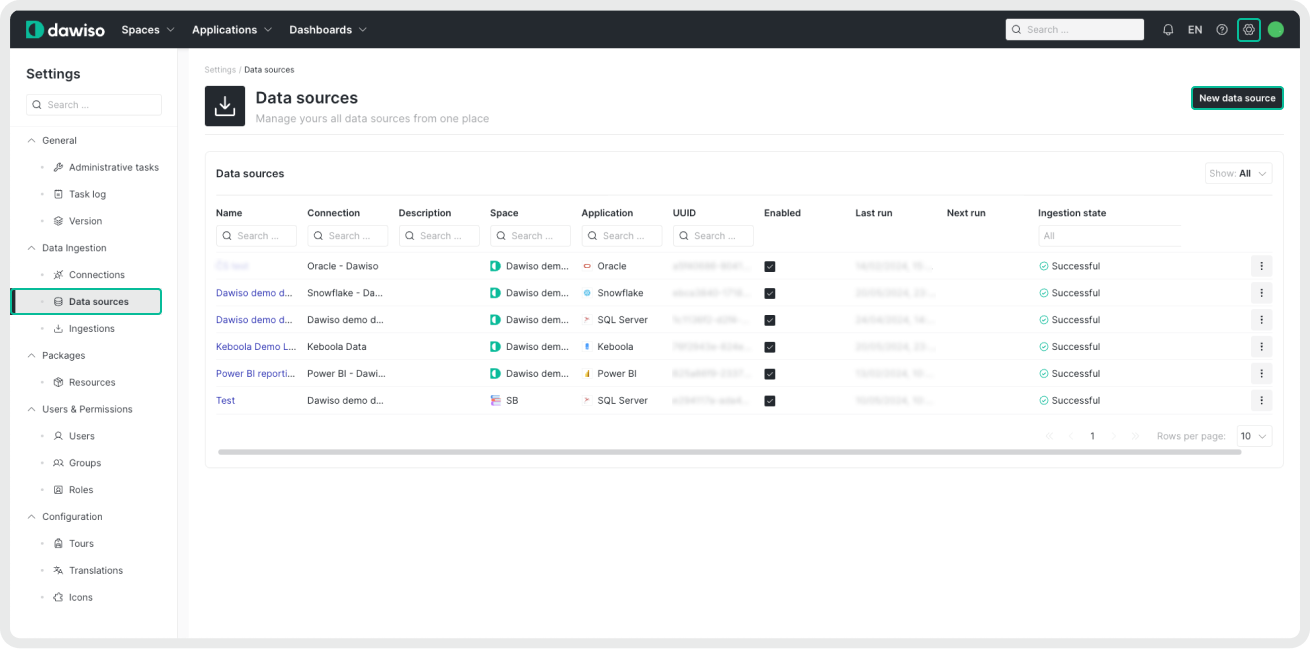
- Navigate to Settings > Data Ingestion > Data Sources.
- Click New data source.
- Select your system and the newly created connection.
- Name your source (and add a description) for easier identification in Dawiso.
Scope the scan
By default, Dawiso scans every stream and app the connected identity can access. Because the Engine API opens each app individually, narrowing the scope can significantly shorten ingestion in large environments. In this step you can optionally limit what is scanned:
- Application IDs: Scan only specific apps. Provide a comma-separated list of app GUIDs.
- Do not include spaces or invalid characters.
- Separate GUIDs with commas only (e.g.
0d8bfe1e-9a2e-4b2c-98b6-12df4456b123,5ac4fd33-bef3-47f2-912d-17aa4e9e3410). - Leave empty to scan all apps.
- Include Streams: Scan only apps in these streams. Provide a comma-separated list of stream names. Leave empty to include all streams.
- Exclude Streams: Skip apps in these streams. Provide a comma-separated list of stream names. Exclusion takes precedence over inclusion: a stream listed in both is excluded.
Stream filters apply to published apps. Apps that are not published to any stream are unaffected by the stream filters; use Application IDs to target them.
Editing the scope of an existing data source
If you change the scope of a data source that has already been ingested:
- Apps that newly come into scope are ingested on the next run.
- Apps that fall out of scope are treated as deleted. Dawiso removes their metadata on the next run, including any user-provided content such as descriptions, ownership, or relations linked to those apps.
Destination configuration
In the Destination configuration step:
- Select into what space you want to store your ingested metadata. You can select only the spaces you have access to.
- Select the workflow for ingested objects management. For more information on workflows, see the article on Workflow types.
- [Optional steps]
- Schedule: To customize the regular automated ingestion, check the box next to Schedule and adjust the frequency.
- Optional Settings: Specify options supported by the provider in JSON format. Option will be made available based on feedback. For more information, see Optional Settings.
- Additional Settings: Add a JSON formatted list of additional settings that can be used to troubleshoot your custom scenarios. We recommend leaving this field empty unless our Dawiso support team suggests otherwise.
- Enable AI-Generated Descriptions: Enable AI-generated descriptions for your ingested metadata. Descriptions will be generated according to prompts that are defined in packages. Each attribute type can have its own configurable prompt and any AI-generated content will be clearly marked with a banner the text is manually reviewed and saved.
- Descriptions will be generated on the following levels: database, schema, view, and table.
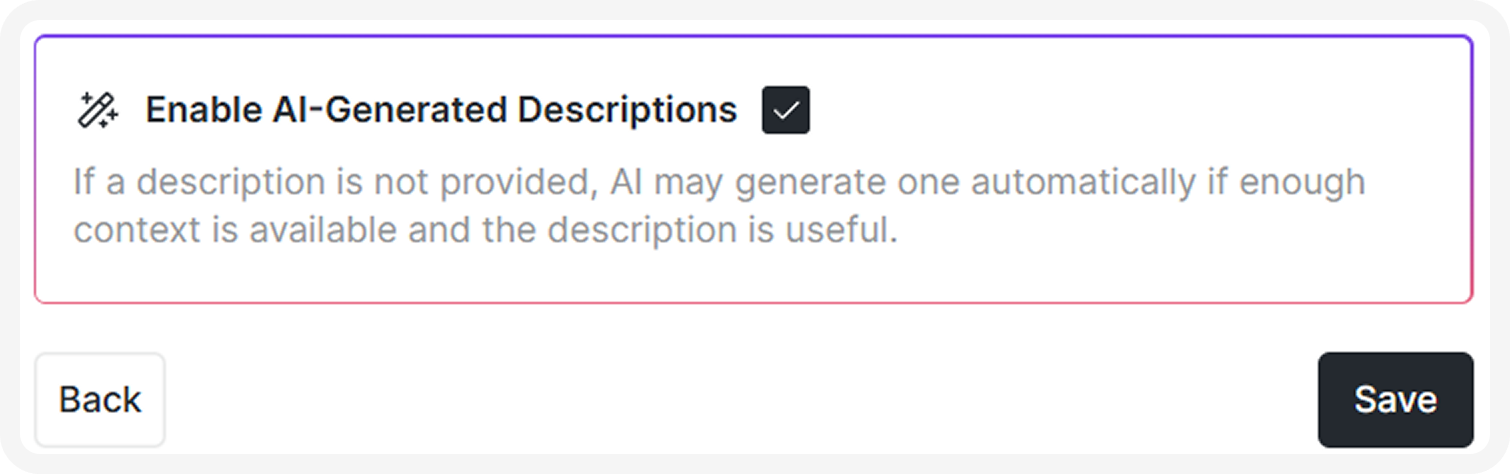
- Descriptions will be generated on the following levels: database, schema, view, and table.
- Save your data source.
If you delete a data source and then create a new one to the same space, the original ingested data will remain and mix with the new data. To prevent duplicates, always delete the metadata application from the space (with the old source) before creating and ingesting a new one.
Optional settings
In the data source configuration step, you can specify a query transformation in the Optional Settings field. This allows for dynamic adjustments to queries based on predefined values.
Query transformations can access the following data source fields:
-
optionalSettings.dictionary: Users can define key-value pairs to be referenced in transformations."dictionary":{ "schemas": "dbo, system, api", "databases": "Alpha, Bravo" } -
datasource: Users can reference values directly from data source properties, which will vary by provider.datasource.databases -
optionalSettings: Users can reference values from optional settings in the data source configuration.```json{ “databases”: “Alpha, Bravo” }
Run ingestion
Once you create your data source, you will be redirected to a list of your data sources.
- Click the three dots next to your newly created source, and select Run ingestion.
- Confirm to ingest your data.
You can find all new, running, or completed ingestions by navigating to Settings > Data Ingestion > Ingestions.
For more information, see the article on Ingestions.
If you are ingesting data on-premises, refer to these articles instead Dawiso Integration Runtime (DIR).
Once data is ingested to metadata applications, manual changes to the object hierarchy are NOT allowed. Changes such as adding, deleting, or moving objects under different parents may cause data inconsistencies and break data scans.