The Apache Hive data source decides which databases Dawiso scans, which object types it includes, and how often it runs.
Before you begin, make sure you have:
- An Apache Hive connection that passed the connection test.
- The list of databases you expect the scan to return. You check the first scan against it. See Prepare for Apache Hive integration.
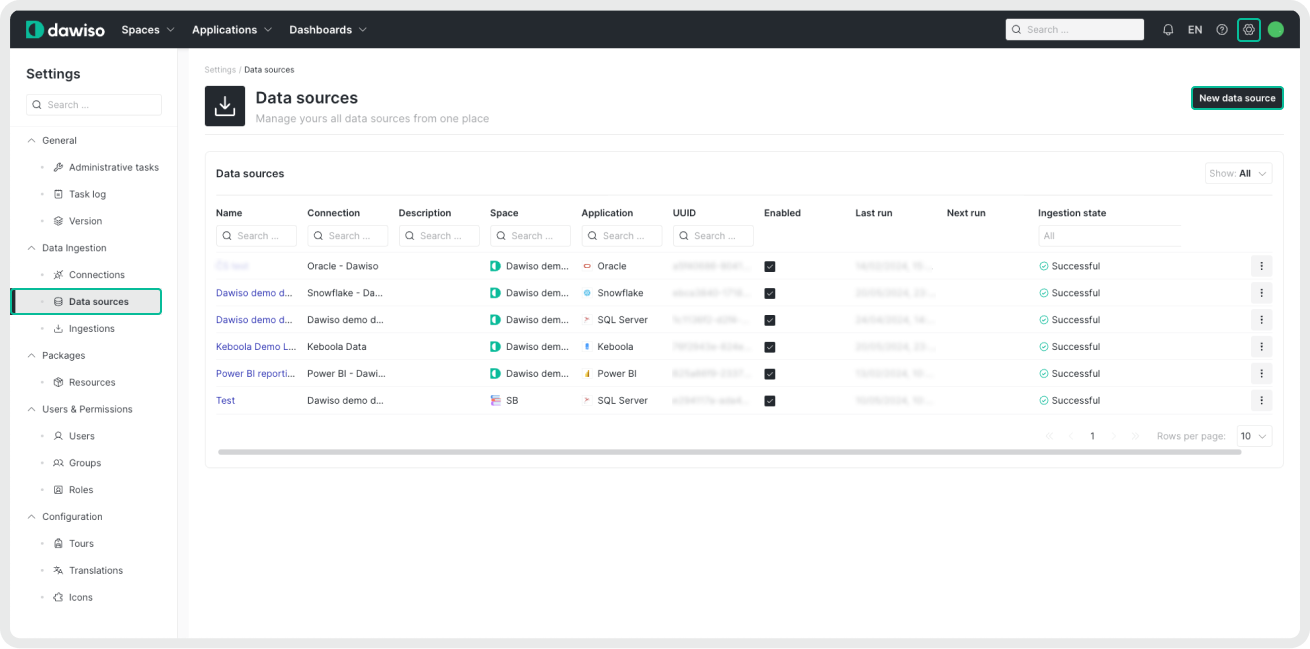
- Navigate to Settings > Data Ingestion > Data Sources.
- Click New data source.
- Select your system and the newly created connection.
- Name your source and add a description for easier identification in Dawiso.
Select databases
In the Databases section, enter the databases to scan in Databases to scan as a JSON array, for example:
["sales_dw", "raw_data"]- Leave the field empty to scan every database the scanning account can see.
- Names are matched without regard to case.
- A listed database that doesn’t exist, or that the account can’t see, is skipped without an error. Check the first scan against your list of expected databases.
Use the list to limit a large platform, or to split a very large cluster across several data sources.
If you remove a database from the list of an already ingested data source, Dawiso deletes the objects of that database at the next ingestion, including user-added content such as descriptions, ownership, and relations.
Configure scan options
In the Scan options section, configure the following options:
| Option | Default | What it does |
|---|---|---|
| Skip system databases | On | Excludes Hive’s sys and information_schema databases, which hold metastore internals, not your data |
| Scan functions | On | Catalogs permanent user-defined functions. Built-in functions are never scanned |
| Scan lineage | On | Derives view lineage from view definitions |
| Scan partitions | Off | Catalogs table partitions. See Turn on partitions deliberately |
| Max partitions per table | 1000 | The per-table cap when Scan partitions is on. If a table has more partitions, the scan catalogs only as many as the cap allows |
| Parallel connections | 4 | How many databases and tables are read at the same time. Each one is a separate HiveServer2 connection |
Turn on partitions deliberately
Scan partitions can change the size of your catalog by orders of magnitude. A daily-partitioned table with three years of history adds more than a thousand objects on its own. One Hive table can have more than 100,000 partitions, and every partition becomes an object in your catalog.
Turn on Scan partitions when analysts need to see how tables are physically laid out, and keep the per-table cap. Hive’s own server-side partition limits don’t apply to the listing command the scan uses, so the cap in Dawiso is the only guard.
Partitioning is documented on every table even with Scan partitions off, through the Partition Keys and Partition Count attributes.
Raise parallel connections on a large platform
The scan reads each table’s details with a separate request to HiveServer2, so the scan time grows with the number of tables. On a platform with thousands of tables, raising Parallel connections shortens the scan, but it also opens that many concurrent HiveServer2 connections. Agree on the number with your cluster administrator, and prefer running the scan outside peak query hours.
Destination configuration
In the Destination configuration step:
- Select the space where Dawiso stores your ingested metadata. You can select only the spaces you have access to.
- Select the workflow for managing ingested objects. For more information, see Workflow types.
- Optionally, configure:
- Schedule: To customize the regular automated ingestion, check the box next to Schedule and adjust the frequency.
- Optional Settings: Specify options supported by the provider in JSON format. For more information, see Optional Settings.
- Additional Settings: Add a JSON formatted list of additional settings for troubleshooting your custom scenarios. Leave this field empty unless Dawiso support asks you to change it.
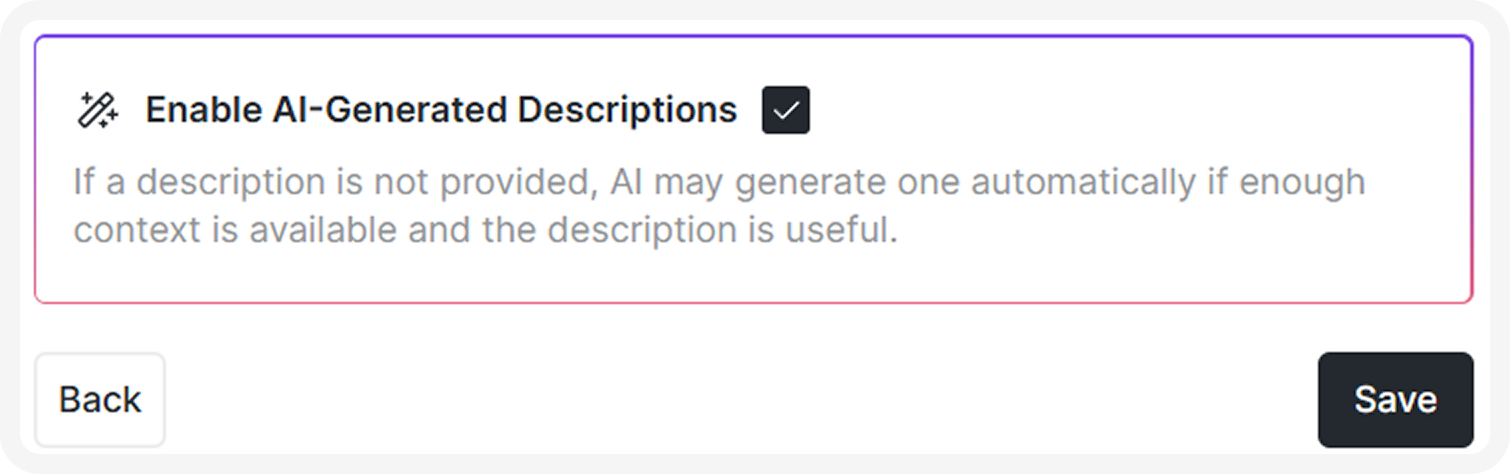
- Enable AI-Generated Descriptions: Generate descriptions for your ingested metadata from predefined prompts. Each attribute type can have its own configurable prompt. AI-generated descriptions carry a banner until a user reviews and saves them.
- Descriptions are generated at the following levels: database, schema, view, and table.
- Descriptions are generated at the following levels: database, schema, view, and table.
- Save your data source.
If you delete a data source and then create a new one for the same space, the original ingested data remains and mixes with the new data. To prevent duplicates, delete the metadata application from the space (with the old source) before creating and ingesting a new one.
Optional settings
The Apache Hive scan is configured in the Databases and Scan options sections, not through query transformations. Leave Optional Settings and Additional Settings empty unless the Dawiso support team asks you to fill them.
Hive metadata changes when someone runs DDL, which on most platforms happens daily rather than hourly. A daily schedule outside peak hours suits most deployments. If you schedule ANALYZE jobs, run the scan after them so that row counts and sizes in the catalog are as current as the statistics.
Run ingestion
After you create your data source, Dawiso redirects you to the list of your data sources.
- Click the three dots next to your newly created source, and select Run ingestion.
- Confirm to ingest your data.
You can find all new, running, or completed ingestions by navigating to Settings > Data Ingestion > Ingestions.
For more information, see Ingestions.
If you ingest data on-premises, see Dawiso Integration Runtime (DIR) instead.
Verify the first scan
An under-privileged account produces a successful scan with an incomplete catalog, without an error. After the first ingestion finishes, check the result:
- Open the destination space and confirm that every database on your list is present. If one is missing, the scanning account can’t see it. See Prepare for Apache Hive integration.
- Open a database and confirm that the Tables, Views, and Functions folders have content.
- Open a table and check its attributes, such as Type, Location, SerDe Library, Owner, and Partition Keys.
- Open a view and confirm that Definition (SQL) has a value. Then open the lineage diagram and confirm that the view’s source tables lead into it.
- If you turned on Scan partitions, open a partitioned table and confirm the Partitions folder under it.
What gets scanned
| Object type | Description | Reference instance |
|---|---|---|
| Databases | Hive databases, without system databases | 5 |
| Tables | Managed, external, and transactional (ACID) tables | 19 |
| Views | Virtual and materialized views, with their definitions | 8 |
| Table columns | Columns of tables, including partitioning columns | 319 |
| View columns | Columns of views | 27 |
| Partitions | Only with Scan partitions on, capped per table | 21 |
| Functions | Permanent user-defined functions only | 3 |
| Lineage relations | View-to-source relations | 10 |
The Reference instance column shows the result of a full scan of the Apache Hive 4.0.1 instance that Dawiso validates this integration on. Your numbers differ. The column shows what a complete scan produces.
Troubleshooting
| Issue | Cause and fix |
|---|---|
| A database is missing from the catalog | The scanning account can’t see it. Apache Ranger and SQL Standard Based Authorization filter SHOW DATABASES to what the account may see, without an error. Grant visibility as described in Prepare for Apache Hive integration, then run the ingestion again |
| Some tables are missing, but their database is present | The account can list those tables but not read their details. Common causes are hive.server2.enable.doAs=true without HDFS read access to the table locations, or a Ranger policy narrower than the database. Dawiso leaves such tables out instead of cataloging them half-empty. Grant read access and run the ingestion again |
| The ingestion failed with an error that names one table, and the catalog didn’t change | Reading that table failed twice for a reason other than permissions, such as a timeout, a dropped connection, or a server error. Dawiso stops instead of finishing without the table, because the table would otherwise disappear from the catalog together with its descriptions and relations. Fix the cause in the error, or lower Parallel connections if HiveServer2 is overloaded, and run the ingestion again |
| The ingestion runs much longer than usual without finishing | HiveServer2 may have stopped responding during the scan. Check that HiveServer2 is healthy. If the ingestion doesn’t finish, contact support@dawiso.com |
| Row Count, Raw Data Size, and Total Size (bytes) are 0 | Expected. Hive doesn’t maintain statistics automatically. They stay 0 until someone runs ANALYZE TABLE ... COMPUTE STATISTICS. No Dawiso setting changes this |
| No partitions in the catalog | Scan partitions is off by default. Turn it on and run the ingestion again |
| A table shows fewer partitions than it has | The table reached Max partitions per table. Raise the cap, keeping in mind that every partition becomes a catalog object |
| No lineage on the diagram | Check that Scan lineage is on. If it is, the view’s sources may be outside the scan scope: a view that reads a table in a database you didn’t include has nothing to point to. Add that database to Databases to scan |
| A view has lineage, but its columns don’t | Expected. Column-level lineage isn’t available |
| Tables changed from managed to external after a Hive 3 to Hive 4 upgrade | Hive 4’s metastore converts tables created with a plain CREATE TABLE to external tables. Dawiso keeps Type as MANAGED_TABLE for those tables, sets Translated to External, and shows Hive’s literal value in Raw Table Type |
| User-defined functions are missing | Only permanent functions are cataloged, and only with Scan functions on. Built-in and temporary functions are never cataloged |
| The scan is slow | Table details cost one request to HiveServer2 per table. Raise Parallel connections, narrow Databases to scan, or split a very large platform across several data sources. Keeping Scan partitions off also helps |
| The scan fails partway with connection errors | Parallel connections may exceed what HiveServer2 accepts at once. Lower it and run the ingestion again |
sys or information_schema appear in the catalog | Skip system databases is off. Turn it on and run the ingestion again |
Once data is ingested into a metadata application, manual changes to the object hierarchy aren’t allowed. Adding, deleting, or moving objects under different parents can cause data inconsistencies and break data scans.