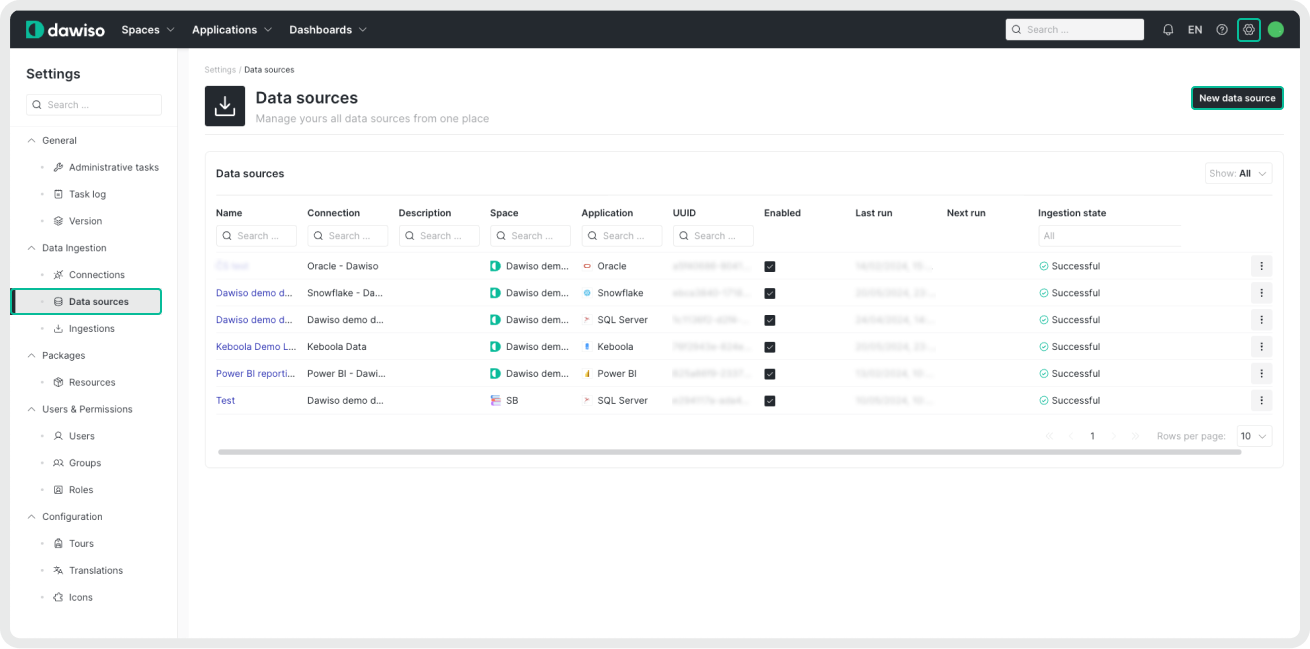
- Navigate to Settings > Data Ingestion > Data Sources.
- Click New data source.
- Select your system and the newly created connection.
- Name your source and add a description for easier identification in Dawiso.
Select databases
In this step, select the databases to ingest into Dawiso as a comma-separated list. Follow these guidelines:
- Don’t include spaces or invalid characters.
- Separate database names with commas, without spaces, for example
AdventureWorks,AdventureWorksDW. - List only databases that exist and that the account can access. A missing or inaccessible database fails the entire ingestion.
Editing the list of databases
If you edit the list of databases for an existing, already ingested data source:
- A newly added database is ingested at the next ingestion run.
- A removed database is treated as deleted: Dawiso removes all its metadata at the next run, including user-added content such as descriptions, ownership, and relations.
Enter all database names in Databases as one list, separated by commas or semicolons, for example sales,billing or sales;billing. Don’t put each database on its own line. Dawiso splits the list only at commas and semicolons, so names on separate lines are read as one database name that doesn’t exist.
In MariaDB, a database and a schema are the same thing. Each database you list appears in Dawiso as a Schema object with its tables, views, routines, sequences, events, and triggers. Dawiso ingests only the databases you list, even if the user has access to more of them. The system databases mysql, information_schema, performance_schema, and sys are always skipped.
The user needs the permissions described in Prepare for MariaDB integration on every database you list. If you add a database to the list later, grant the permissions on it before the next ingestion.
If the user can’t access one of the listed databases, the whole ingestion fails with an error such as Cannot change database to [database_name]: Access denied, and Dawiso loads no metadata from any of the listed databases in that run. The metadata from earlier ingestions stays as it was. Grant the permissions on the database, or remove it from the list, and run the ingestion again.
Split one server across several data sources
One connection can serve several data sources. To ingest the databases of one server into different spaces, or on different schedules, create one data source for each group of databases and list only that group’s databases in each. For example, list sales,billing in a data source for the finance space and crm in a data source for the sales space.
List each database in only one data source, so that its metadata appears in Dawiso only once.
Destination configuration
In the Destination configuration step:
- Select the space where Dawiso stores your ingested metadata. You can select only the spaces you have access to.
- Select the workflow for managing ingested objects. For more information, see Workflow types.
- Optionally, configure:
- Schedule: To customize the regular automated ingestion, check the box next to Schedule and adjust the frequency.
- Optional Settings: Specify options supported by the provider in JSON format. For more information, see Optional Settings.
- Additional Settings: Add a JSON formatted list of additional settings for troubleshooting your custom scenarios. Leave this field empty unless Dawiso support asks you to change it.
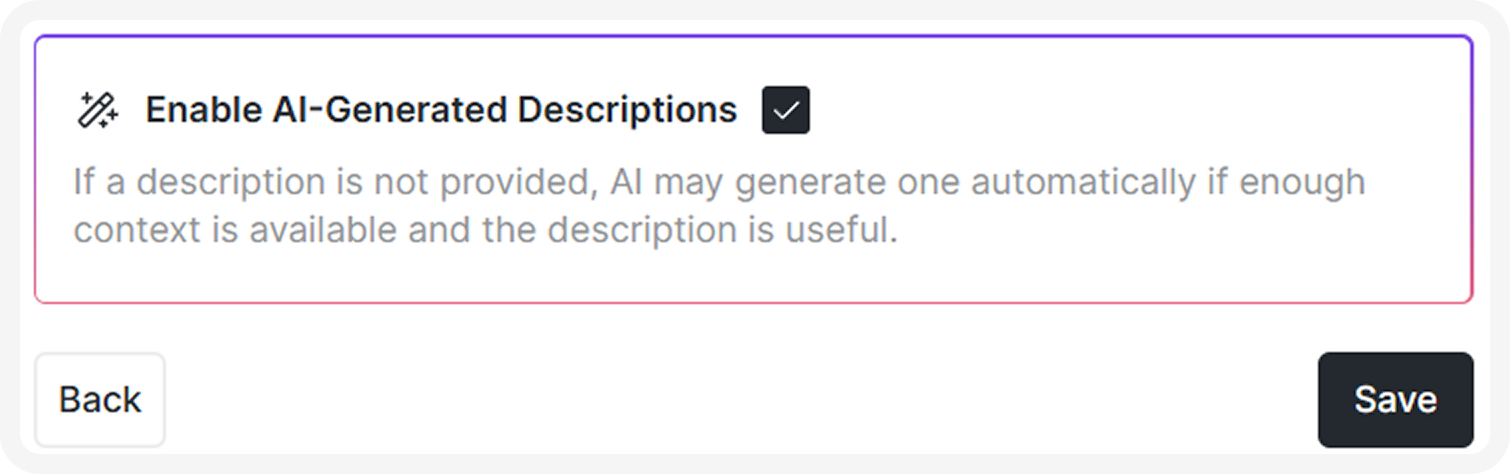
- Enable AI-Generated Descriptions: Generate descriptions for your ingested metadata from predefined prompts. Each attribute type can have its own configurable prompt. AI-generated descriptions carry a banner until a user reviews and saves them.
- Descriptions are generated at the following levels: database, schema, view, and table.
- Descriptions are generated at the following levels: database, schema, view, and table.
- Save your data source.
If you delete a data source and then create a new one for the same space, the original ingested data remains and mixes with the new data. To prevent duplicates, delete the metadata application from the space (with the old source) before creating and ingesting a new one.
Optional settings
In the data source configuration step, the Optional Settings field accepts a query transformation that adjusts queries dynamically based on predefined values.
Query transformations can access the following data source fields:
-
optionalSettings.dictionary: Define key-value pairs to reference in transformations."dictionary":{ "schemas": "dbo, system, api", "databases": "Alpha, Bravo" } -
datasource: Reference values directly from data source properties; these vary by provider.datasource.databases -
optionalSettings: Reference values from optional settings in the data source configuration.{ "databases": "Alpha, Bravo" }
Run ingestion
After you create your data source, Dawiso redirects you to the list of your data sources.
- Click the three dots next to your newly created source, and select Run ingestion.
- Confirm to ingest your data.
You can find all new, running, or completed ingestions by navigating to Settings > Data Ingestion > Ingestions.
For more information, see Ingestions.
If you ingest data on-premises, see Dawiso Integration Runtime (DIR) instead.
Once data is ingested into a metadata application, manual changes to the object hierarchy aren’t allowed. Adding, deleting, or moving objects under different parents can cause data inconsistencies and break data scans.