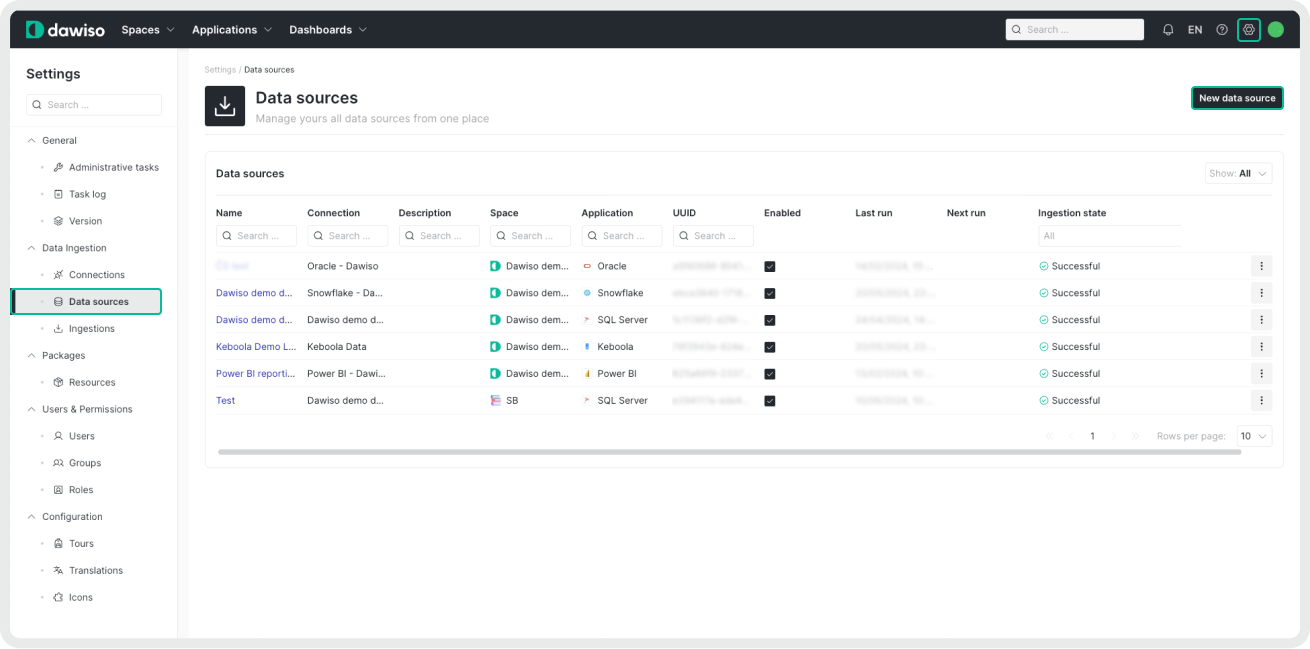
- Navigate to Settings > Data Ingestion > Data Sources.
- Click New data source.
- Select your system and the newly created connection.
- Name your source and add a description for easier identification in Dawiso.
Scope
In the Scope section, choose the databases to ingest. Databases takes a JSON list of database names, for example ["default", "sales"].
- Leave Databases empty to ingest every database the Dawiso user can see. Milvus has no system databases, so nothing is skipped.
- Database names are case-sensitive.
- If the user can’t see one of the listed databases, the ingestion stops with the error
database(s) [<name>] not visible to this identity; visible: [<names>], and the metadata from earlier ingestions stays as it was. Check the name and the user’s privileges, see Prepare for Milvus integration.
Each ingestion replaces what Dawiso knows about the data source. Anything the ingestion no longer finds is treated as deleted, together with the descriptions, owners and relations added to it in Dawiso. This happens when:
- You remove a database from Databases.
- The Dawiso user loses its collection-level privileges on one database, while it still sees collections in another one. Milvus then lists the first database’s collections as empty, and the ingestion log shows the warning
database <name>: 0 collections visible -- empty, or hidden by RBAC (no collection-level grant). The ingestion doesn’t stop: the warning is the only sign. On a private connection that runs on Dawiso Integration Runtime (DIR), the warnings of a successful run don’t reach the ingestion log in Dawiso, so the deletion happens without any visible message.
When the user sees no collection at all, Dawiso stops the ingestion instead and deletes nothing.
Optional settings
To skip the row counts of partitions, enter the following in Optional settings:
{ "skipPartitionStats": true }Dawiso reads the row count of each partition with a separate request, and a collection with a partition key can have up to 1,024 partitions. With this setting, partitions are still ingested, but their Row count stays empty.
Destination configuration
In the Destination configuration step:
- Select the space where Dawiso stores your ingested metadata. You can select only the spaces you have access to.
- Select the workflow for managing ingested objects. For more information, see Workflow types.
- Optionally, configure:
- Schedule: To customize the regular automated ingestion, check the box next to Schedule and adjust the frequency.
- Optional Settings: Specify options supported by the provider in JSON format. For more information, see Optional Settings.
- Additional Settings: Add a JSON formatted list of additional settings for troubleshooting your custom scenarios. Leave this field empty unless Dawiso support asks you to change it.
- Enable AI-Generated Descriptions: Generate descriptions for your ingested metadata from predefined prompts. Each attribute type can have its own configurable prompt. AI-generated descriptions carry a banner until a user reviews and saves them.
- Descriptions are generated at the following levels: database, schema, view, and table.
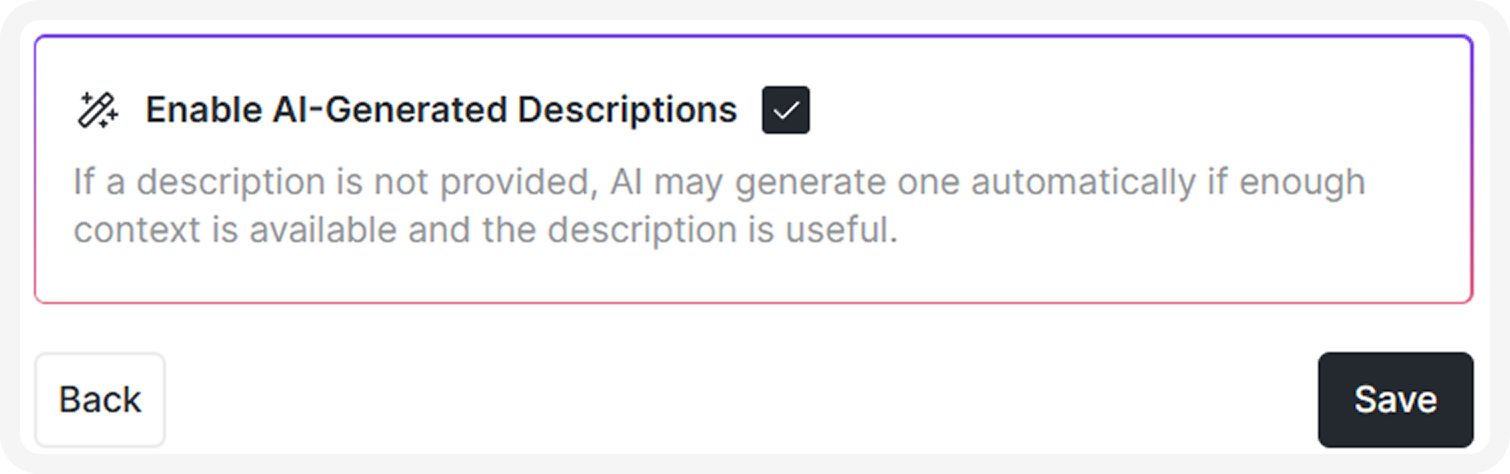
- Descriptions are generated at the following levels: database, schema, view, and table.
- Save your data source.
If you delete a data source and then create a new one for the same space, the original ingested data remains and mixes with the new data. To prevent duplicates, delete the metadata application from the space (with the old source) before creating and ingesting a new one.
Optional settings
In the data source configuration step, the Optional Settings field accepts a query transformation that adjusts queries dynamically based on predefined values.
Query transformations can access the following data source fields:
-
optionalSettings.dictionary: Define key-value pairs to reference in transformations."dictionary":{ "schemas": "dbo, system, api", "databases": "Alpha, Bravo" } -
datasource: Reference values directly from data source properties; these vary by provider.datasource.databases -
optionalSettings: Reference values from optional settings in the data source configuration.{ "databases": "Alpha, Bravo" }
Run ingestion
After you create your data source, Dawiso redirects you to the list of your data sources.
- Click the three dots next to your newly created source, and select Run ingestion.
- Confirm to ingest your data.
You can find all new, running, or completed ingestions by navigating to Settings > Data Ingestion > Ingestions.
For more information, see Ingestions.
If you ingest data on-premises, see Dawiso Integration Runtime (DIR) instead.
Troubleshooting
| Error message or issue | Cause | Fix |
|---|---|---|
scan resolved to zero collections in [<databases>]; refusing to report an empty catalog | The user sees the databases but none of their collections. Milvus hides collections from a role without collection-level privileges, for example a role with only DatabaseReadOnly. Dawiso also stops when the databases really hold no collection, because the two cases look the same. | Grant the privileges described in Prepare for Milvus integration. |
database(s) [<name>] not visible to this identity | The user sees only the databases named in its grants. | Check the spelling and the case of the name in Databases. |
An error with HTTP 403 and (privilege denied: grant the scanning role the privileges listed under Minimum Required Permissions) | The user is missing one of the privileges DescribeCollection, ShowPartitions or IndexDetail. The error message names it, for example PrivilegeShowPartitions. | Grant the privileges described in Prepare for Milvus integration. |
A database shows Collection count 0 although it has collections | The user has no collection-level privileges on that database, and its collections were removed from the catalog. | Grant the privileges, see Prepare for Milvus integration. The next ingestion adds the collections again as new objects, without the content added to them earlier. |
| Row count or Load state of collections, or Database ID and Properties of a database, are empty, and the ingestion log shows warnings | The user is missing GetStatistics, GetLoadState or DescribeDatabase. The warning names the privilege. | Grant the missing privilege that the warning names, see Prepare for Milvus integration. |
Once data is ingested into a metadata application, manual changes to the object hierarchy aren’t allowed. Adding, deleting, or moving objects under different parents can cause data inconsistencies and break data scans.